
Manual 3 · Chapter 3
Looking up stock
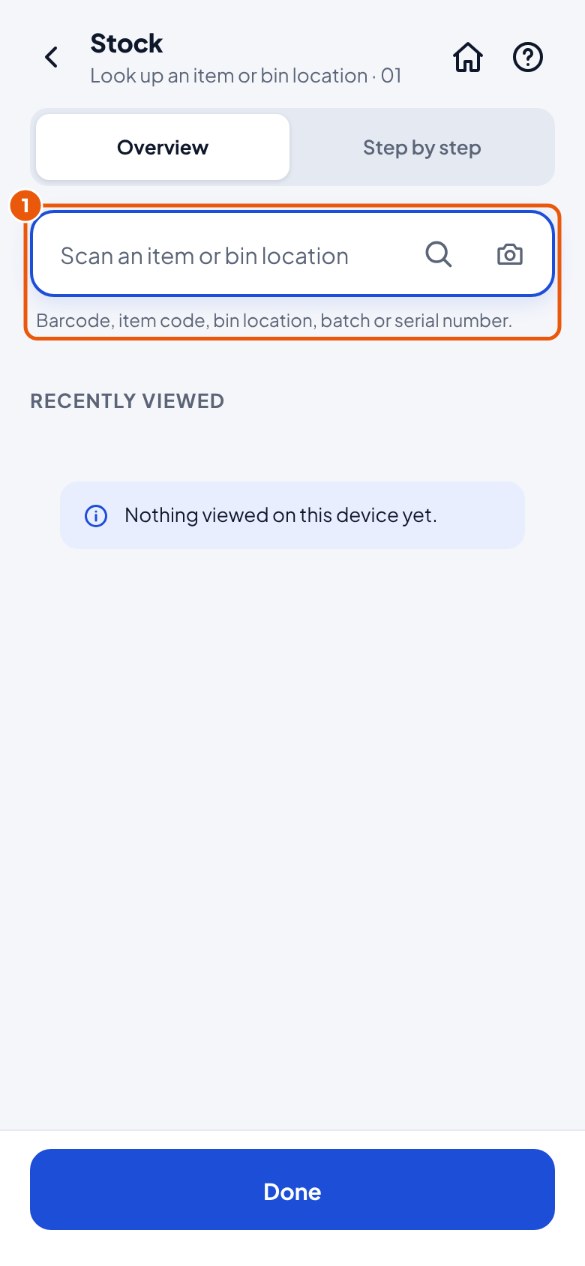
- Tap the Stock tile and scan an item or a bin location in the scan field 1. (Scanning on the start screen works too.)
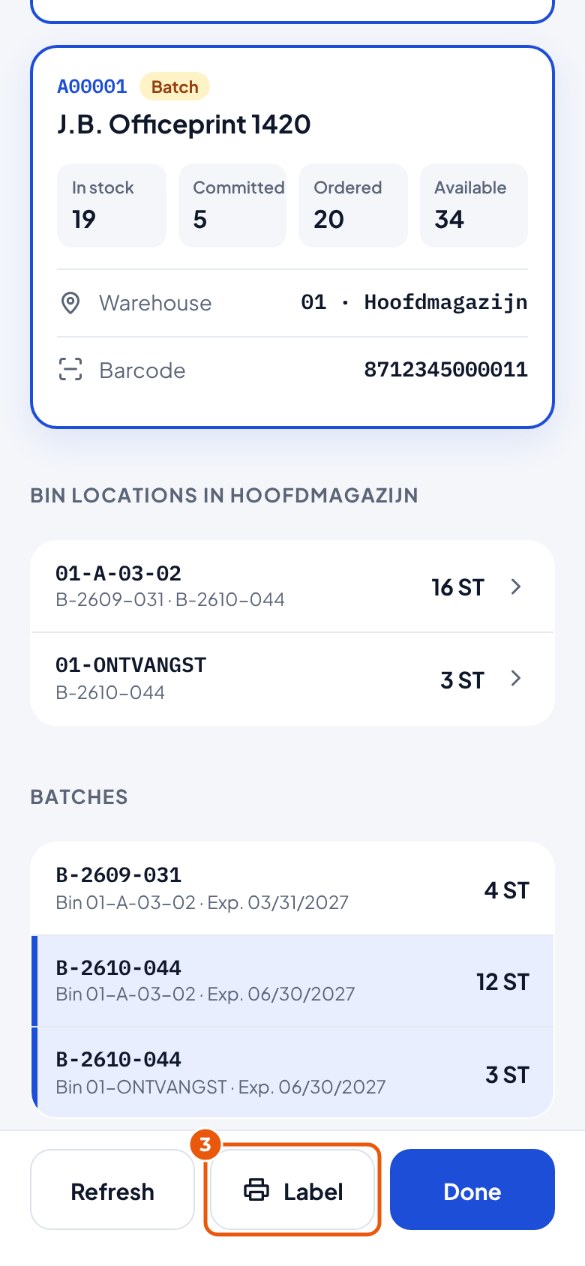
- For an item you see how much there is in your warehouse, per bin location and per batch (the oldest expiry date at the top), and below that the other warehouses. For a bin location you see what is there.
- Need a label? Tap Label 3 (see chapter 7).
The stock is wrong#
You see that there is more or less in a place than KoonScan says. You count it and KoonScan creates a count in SAP; the office processes the difference. For this you need the Count permission.
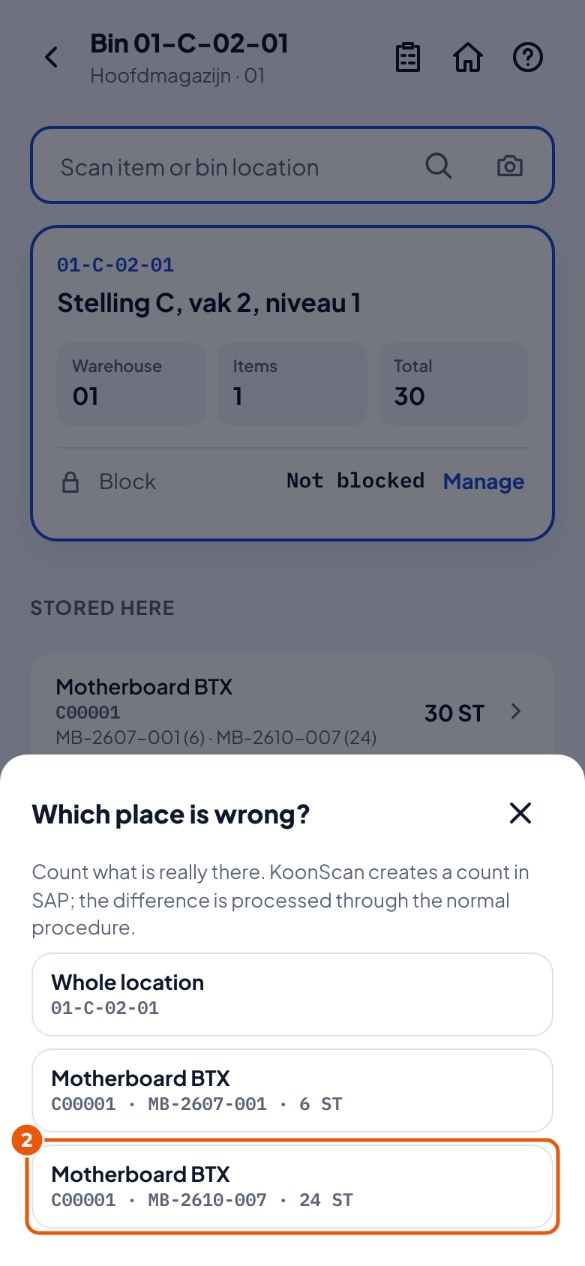
- Open the bin location, the item or the batch and tap the counting clipboard 1 at the top (Stock is wrong).
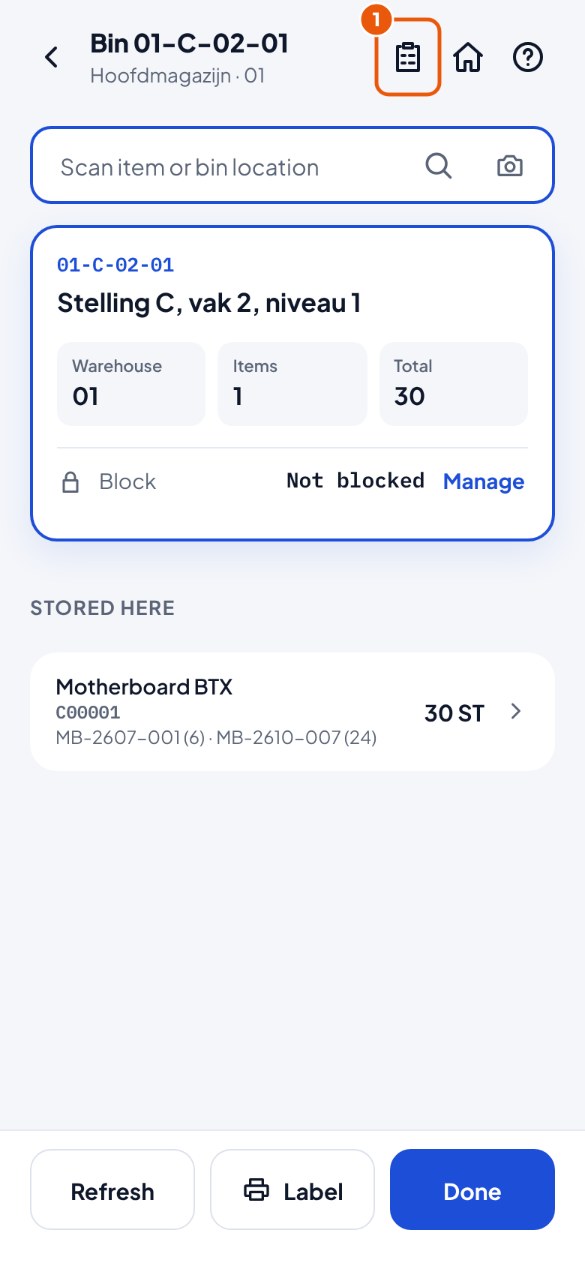
- Choose which place is wrong 2: an item or batch in a bin location, or the whole bin location.
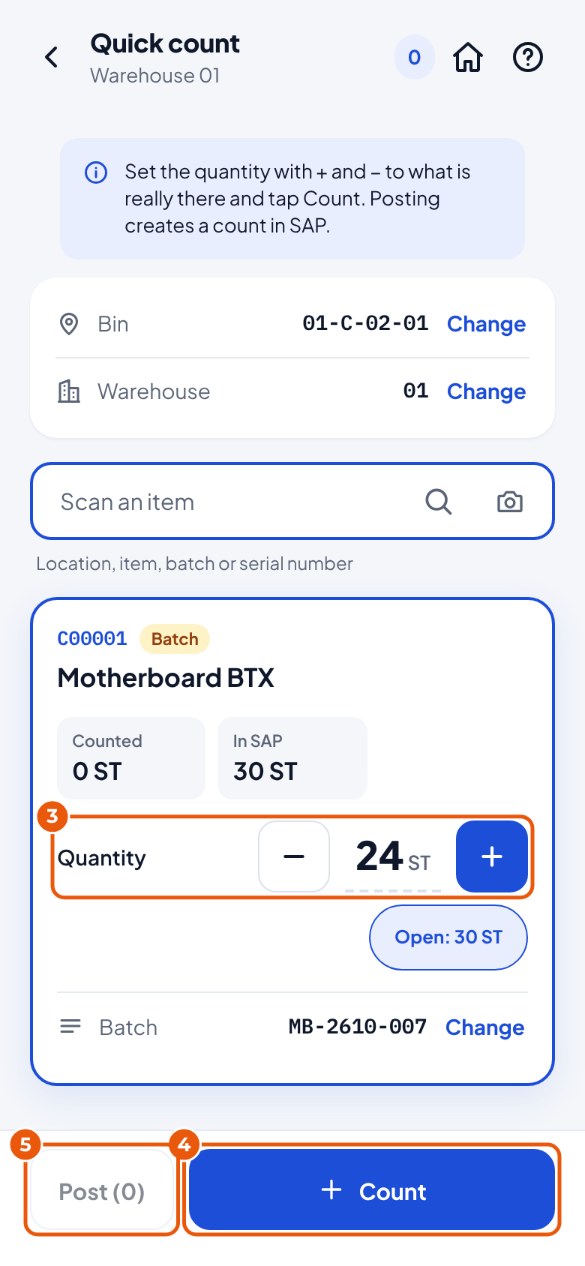
- Quick count opens with everything already filled in. The quantity is set to what SAP says is there. Use + and − to set it to what is really there 3.
- Tap Count 4.
- Tap Post to SAP 5 and confirm.