

Manual 2 · Chapter 5
Adding and managing employees
Everyone who works with KoonScan is an employee in SAP with their own PIN. You add someone once; after that they sign in with their name and PIN.
Adding an employee#
- Go to Administration → Users.
- Tap Add user 2. (At 3 you see the existing users.)
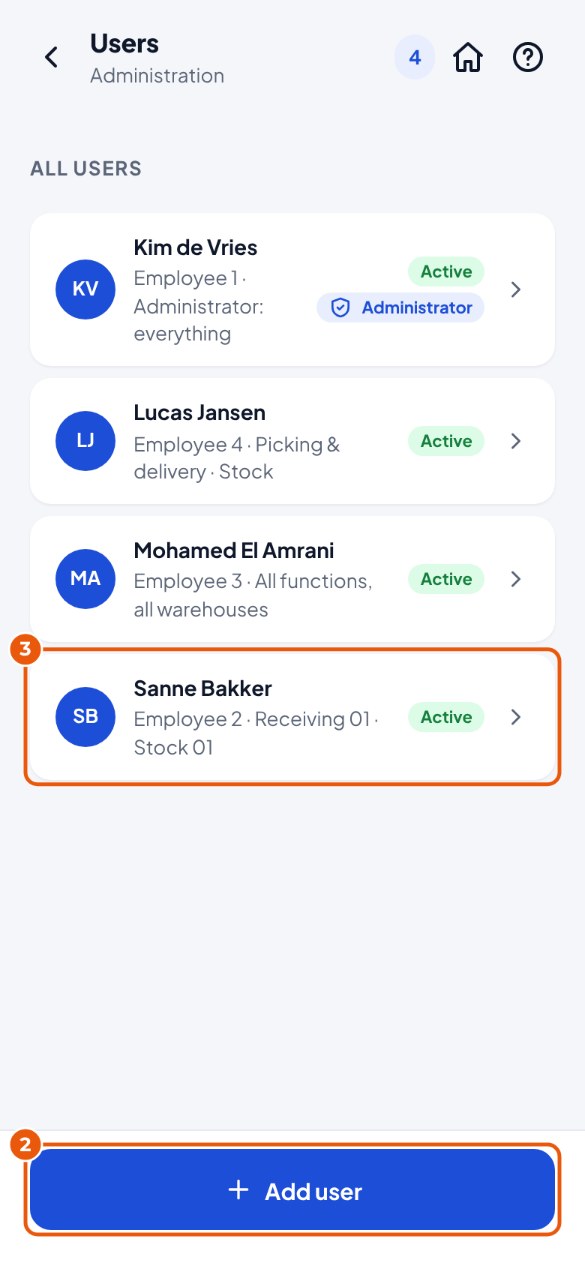
- Choose the employee 3. You only see active employees from SAP who are not users yet. Is someone missing? Then first create them in SAP (Human Resources → Employee Master Data).
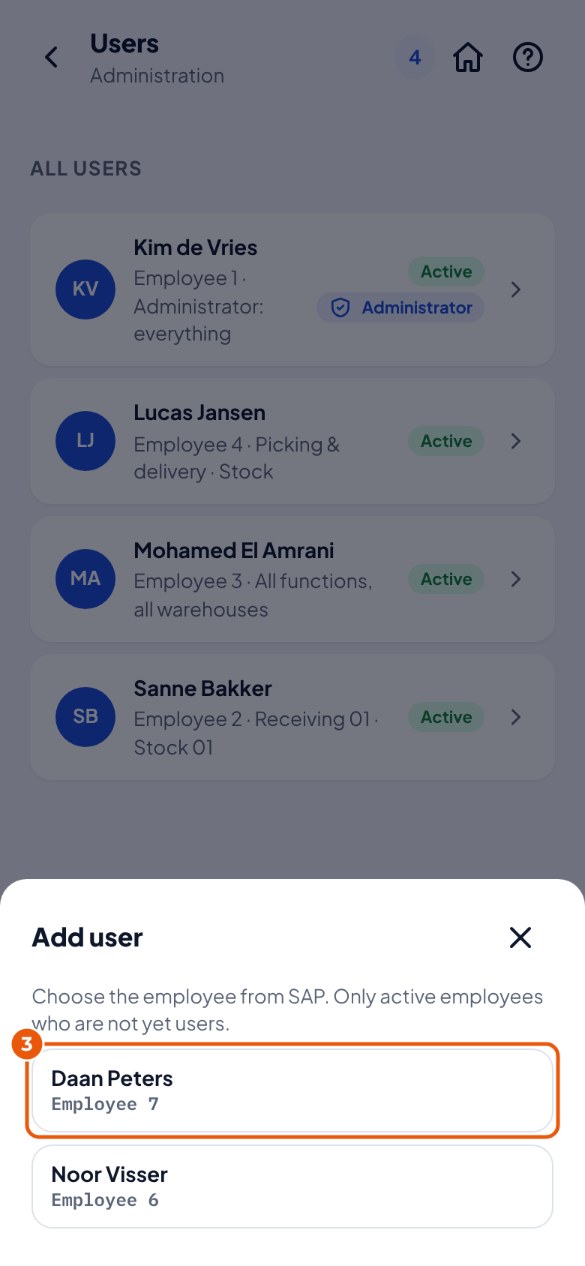
- Type a PIN 4 and type it again at Repeat PIN 5. Then give the PIN to the employee in person.
- May the employee do everything? Leave Limit rights 6 off. Do you want to choose what they may do? Then switch it on and choose per function Off, All warehouses or Choose warehouses.
- Tap Add 7.
Forgotten PIN, making an administrator or changing rights#
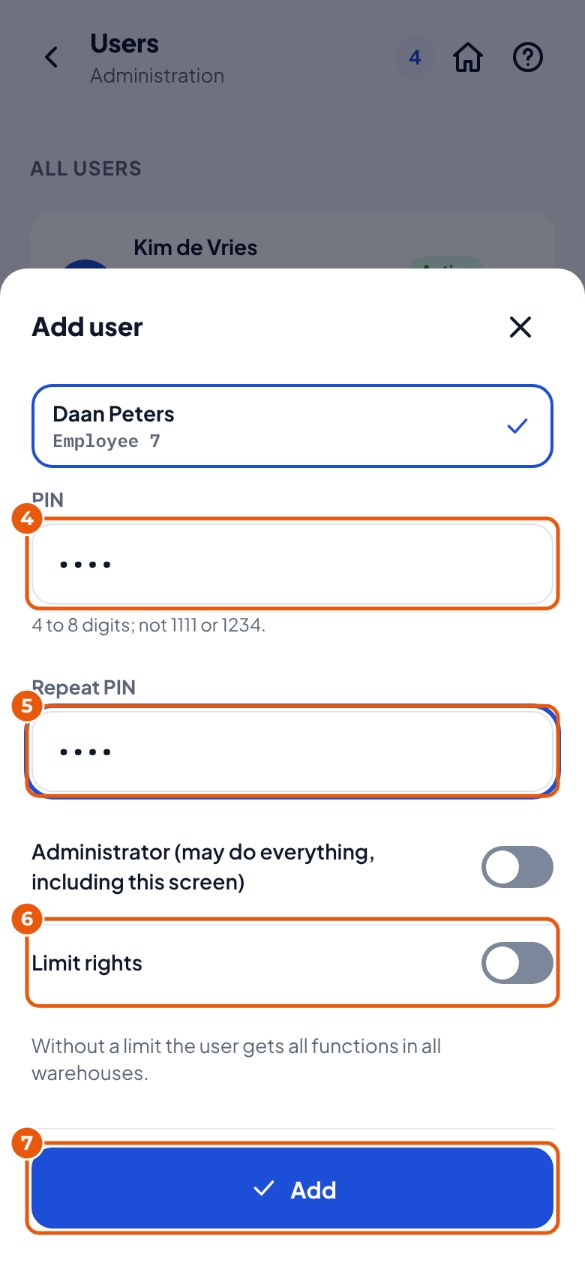
- Go to Administration → Users and tap the name. Forgot your PIN? Tap Set PIN 1 and type a new PIN twice.
- Making an administrator? Switch on Administrator 2 (an administrator may do everything, including this administration screen).
- Want to change rights? Choose per function 3 what the employee may do.
- Tap Save 4.
Branches (only if SAP works with branches)#
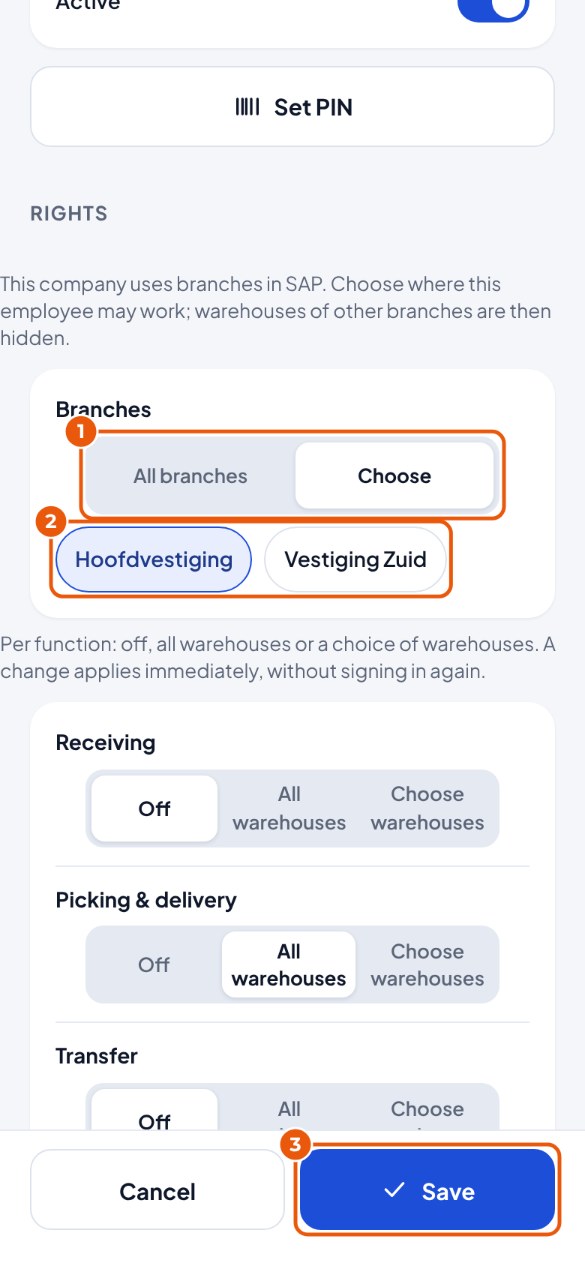
Does your company work with several branches in SAP? Then you choose per employee in which branches they may work. Without branches in SAP you do not see this block.
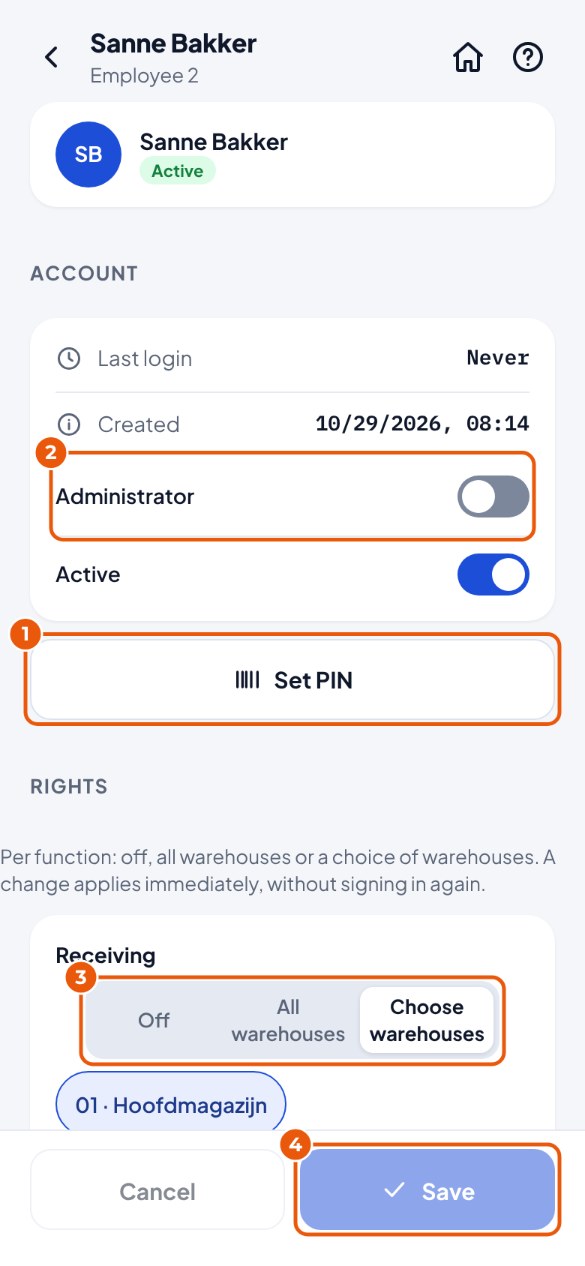
- Go to Administration → Users and tap the name. At Branches 1 choose Choose. (All branches is the default.)
- Tap the branches where the employee may work 2. A dark button is on.
- Tap Save 3.
PIN rules#
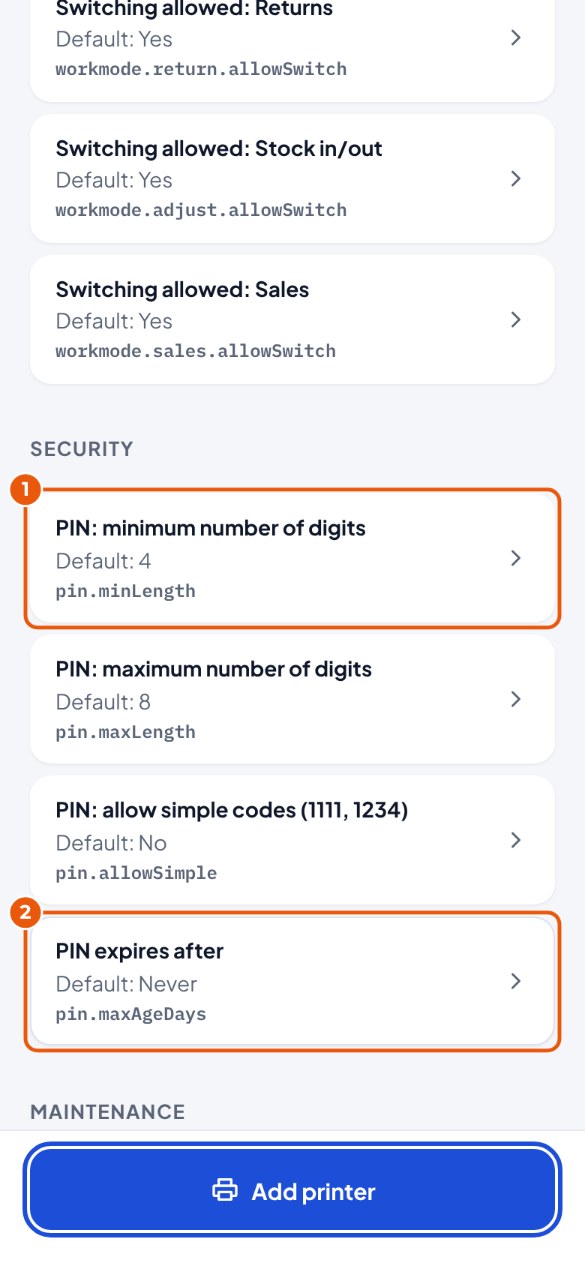
By default a PIN is 4 to 8 digits, not as simple as 1111 or 1234, and it never expires. You can make this stricter.
- Go to Administration → Settings → group Security and tap PIN: minimum number of digits 1. Choose the number.
- Should employees replace their PIN regularly? Tap PIN expires after 2 and choose the number of days.
What may an employee do? (rights)#
| Right | This lets the employee |
|---|---|
| Stock | Look up stock per item and bin location, print labels, view bin locations, block a batch (with a reason). |
| Receiving | Receive against a purchase order and without a purchase order. |
| Transfer | Move, whole bin, whole batch, transfer requests, put away and replenish. |
| Picking & delivery | Pick and post pick lists, and deliver a sales order without a pick list (Deliver order). |
| Returns | Returns from a customer and to a supplier. |
| Stock in/out | Add or remove stock without a document, with a reason. |
| Count | Do counting tasks and quick count, also via "Stock is wrong" on the stock screens. |
| Bin locations | Block and release bin locations, change attributes, release a blocked batch again. |
| Production | Issue and return components, report finished. |
| Sales | Sell at the counter (delivery and invoice in one go) and make a credit note on a sales invoice. Packing falls under Picking & delivery. |
| Packaging | Post a single pallet exchange at the door (Packaging tile). Packaging with a delivery, goods receipt or return belongs to that document and needs no extra right. |