
Manual 3 · Chapter 1
Signing in and the start screen
Signing in#
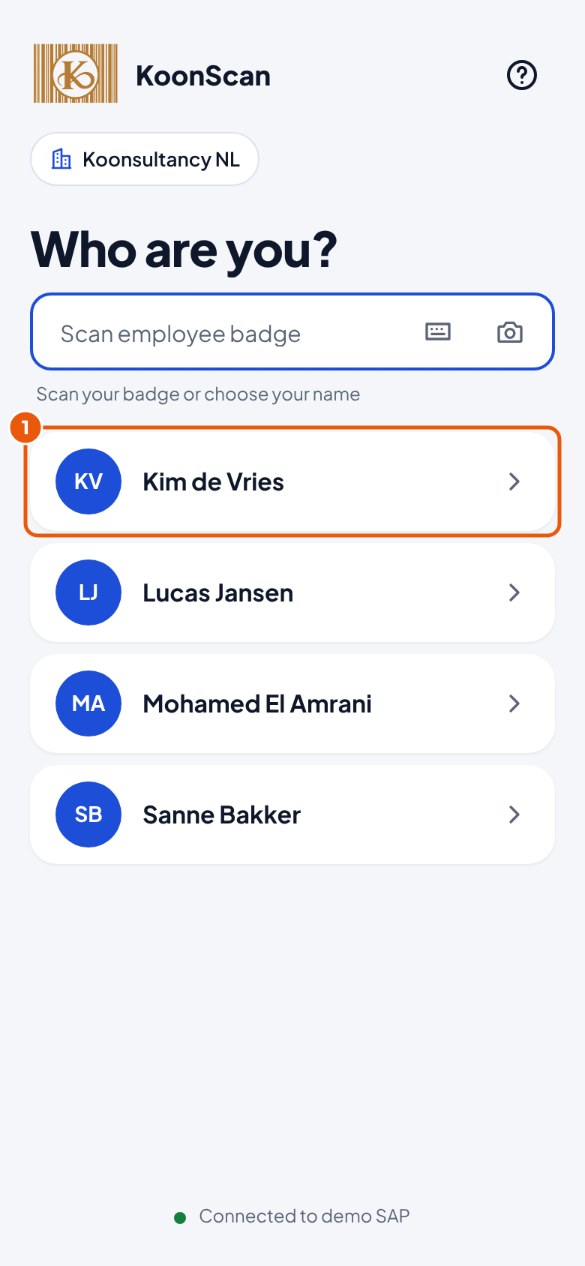
- Tap your name 1. If your company works with more than one SAP company, choose the company first. (Do you have an employee badge? Then scan it.)
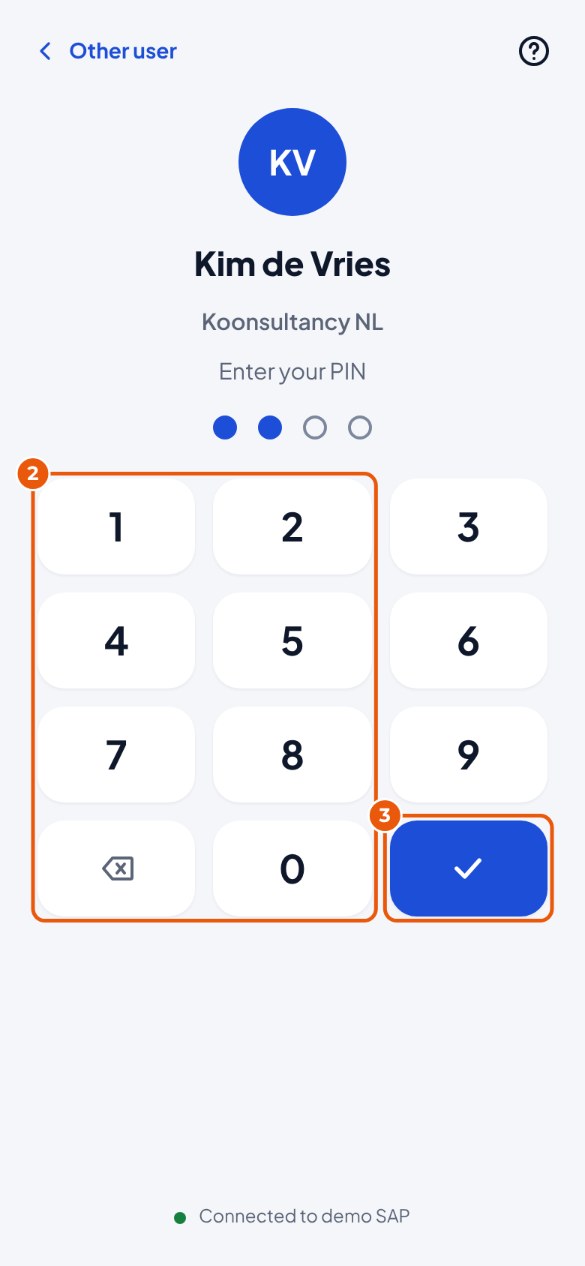
- Enter your PIN on the digits 2.
- Tap the check mark 3 (Sign in).
The start screen#
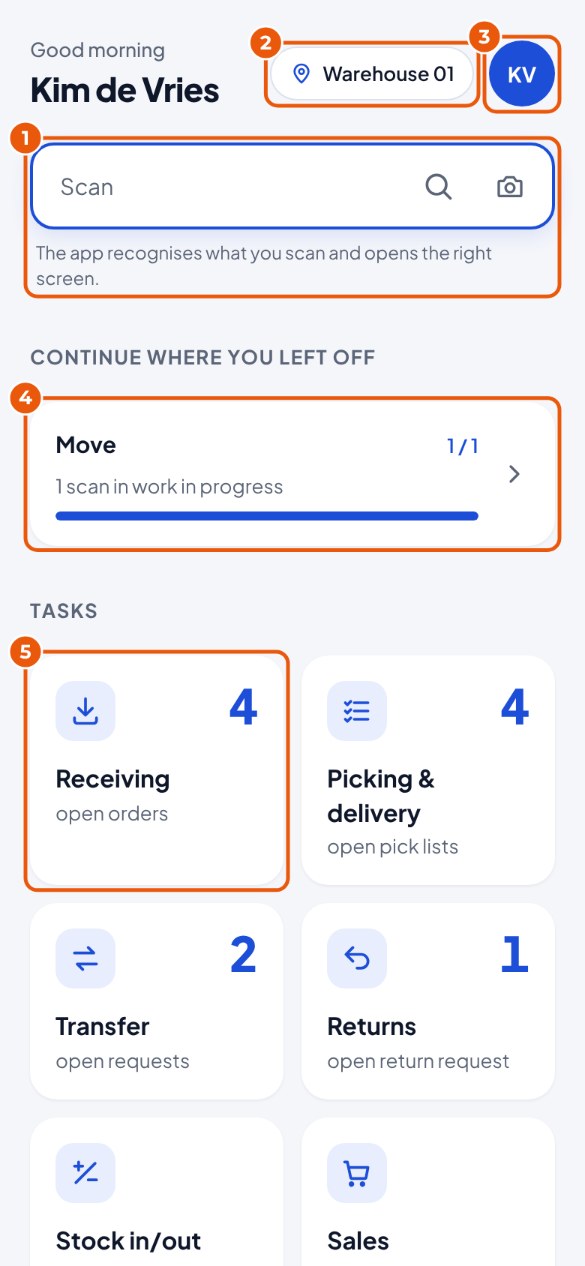
- The scan field 1: scan something here (an item, bin location or order) and KoonScan opens the right screen straight away.
- The warehouse you work in 2. Tap it to choose another warehouse.
- Your initials 3: settings (light or dark screen, language, sound) and Sign out.
- Continue where you left off 4: work that you have not posted yet. Tap it to carry on. Want to stop instead? Tap the × on the card and then Cancel work: your own scans are discarded and nothing goes to SAP. Keep leaves the work as it is.
- The Tasks 5: tap a tile to start. You only see the tasks you have permission for. The big number on a tile is how many are open in your warehouse, for example open orders. If you tap the tile, you see exactly that list.
Your settings#
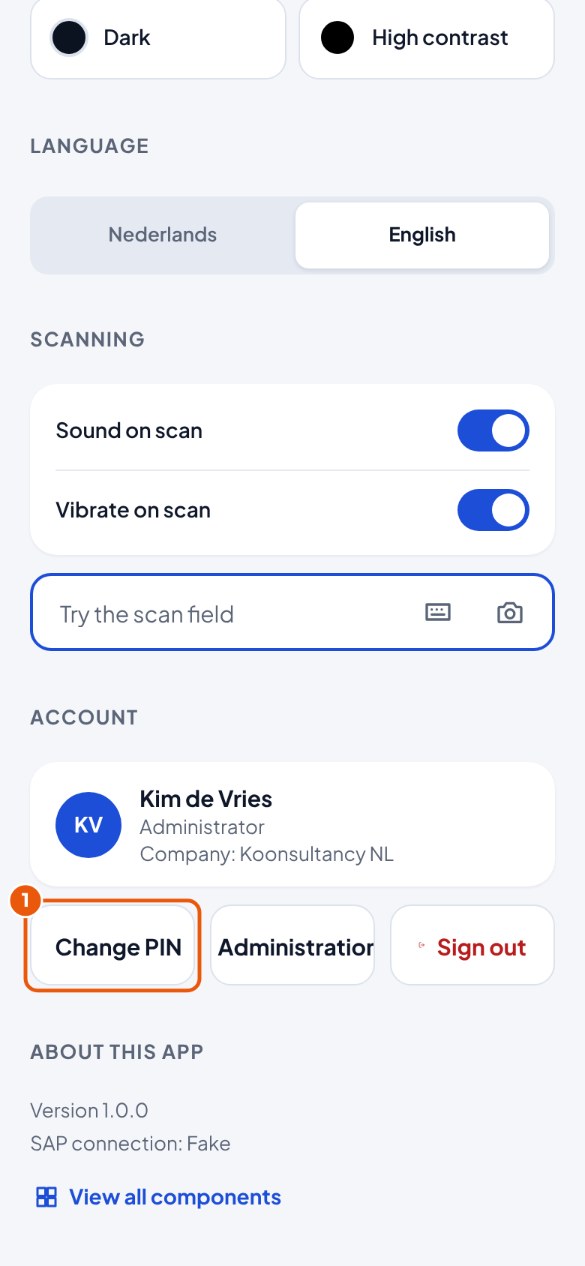
Tap your initials at the top to open Settings. What you choose here applies to this device.
- Appearance: Light, Dark, High contrast (extra clear, for bright daylight) or Follow device.
- Language: the language of the app.
- Scanning: Sound on scan and Vibrate on scan. Try the scan field lets you test whether the scanner works, without anything being posted.
- Account: who is signed in, Change PIN (Changing your PIN) and Sign out.
- About this app: the version of KoonScan, of the Android app (only in the app) and which scanner the app recognises (Zebra, Newland, or keyboard and camera). Handy when you report a problem.
- Change server address: only in the Android app, to pair the device again with another server or company (Manual 2, chapter 7).
Changing your PIN#
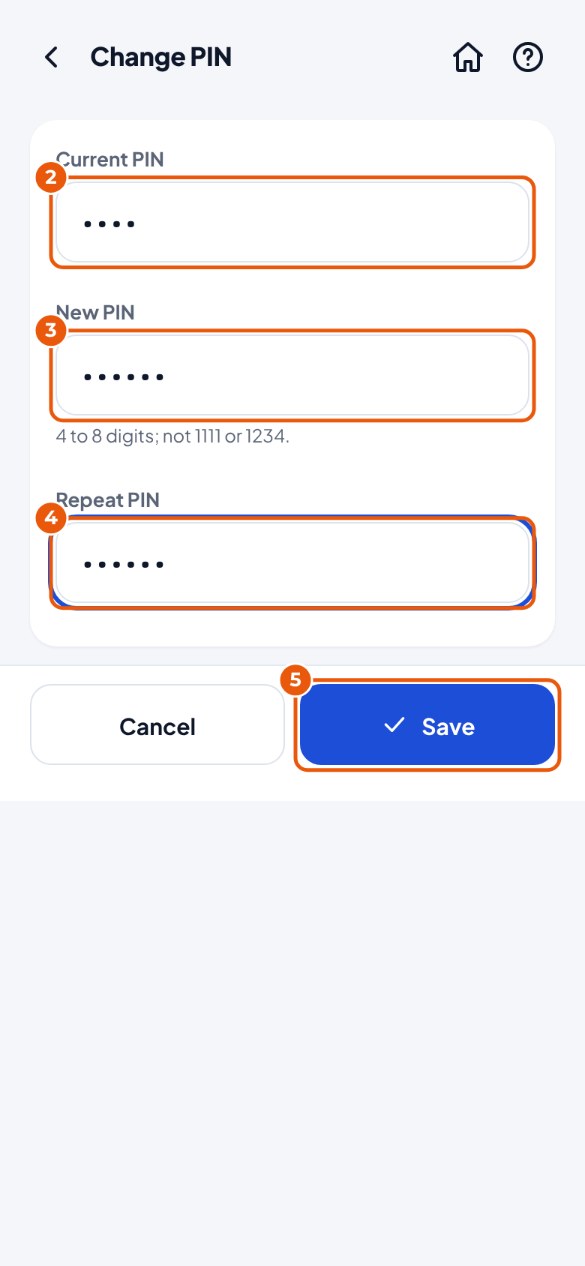
- On the start screen, tap your initials and then Change PIN 1.
- Type your Current PIN 2.
- Type your New PIN 3 and type it once more 4. Below the field it says how many digits are allowed.
- Tap Save 5.