
Manual 3 · Chapter 12
Counter sales, credit notes and packing
For the counter you need the Sales permission; packing falls under Picking & delivery. You do not take payment in KoonScan but at the till or in SAP.
Selling at the counter#
A customer comes to collect something. KoonScan posts the delivery and the invoice in one go.
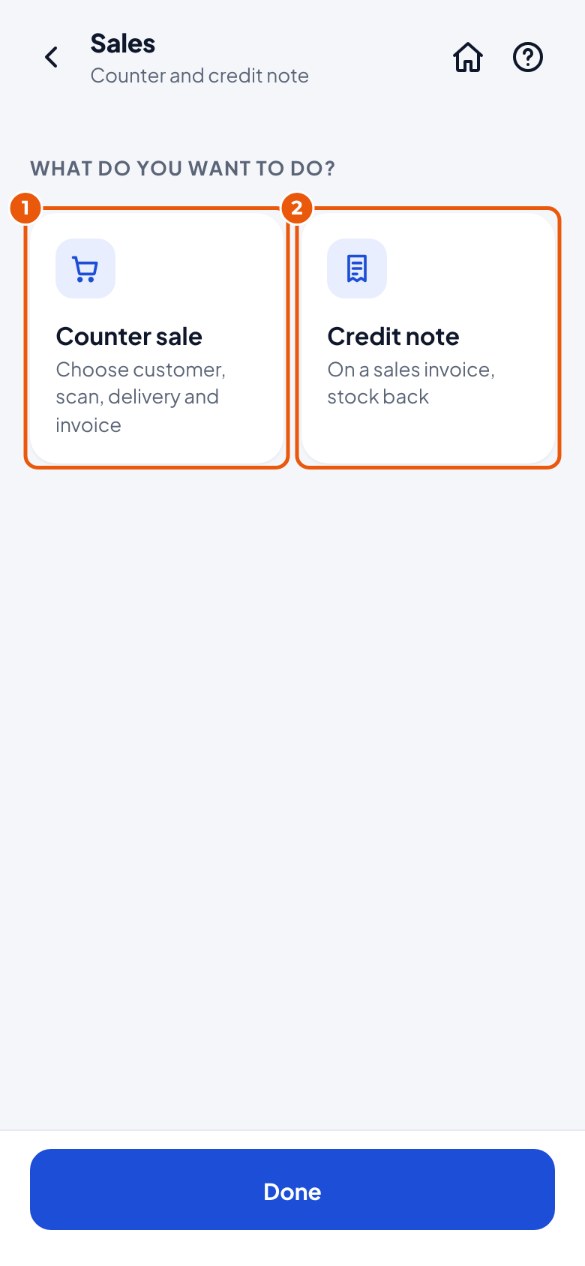
- Tap the Sales tile and then Counter sale 1. You start a credit note with Credit note 2.
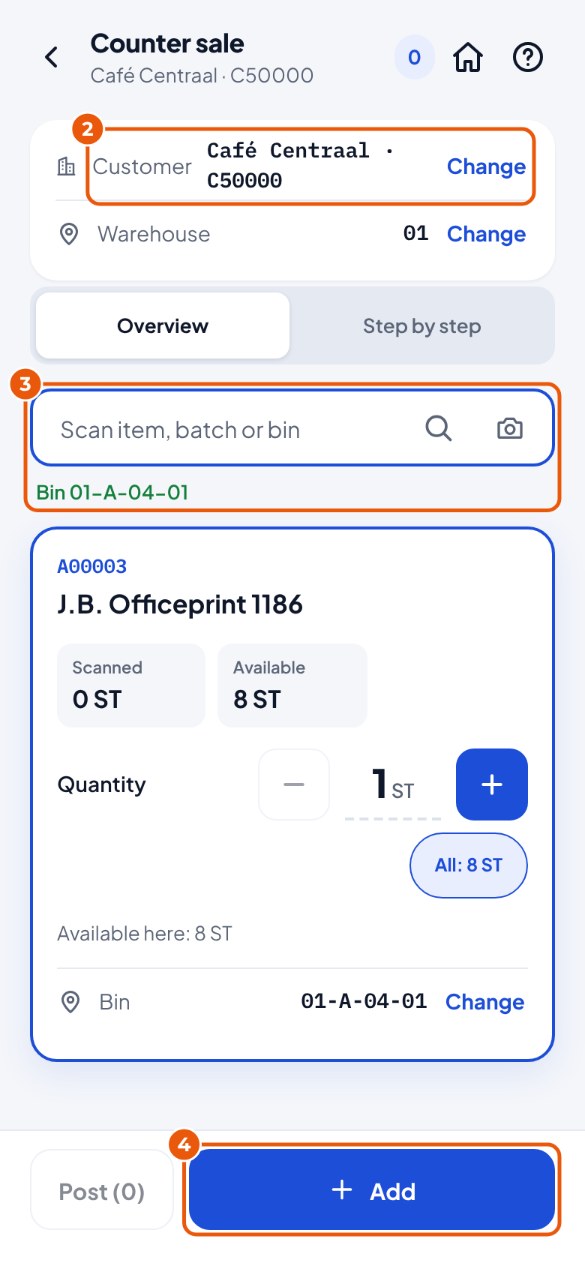
- Check that the right customer is there 2. Usually the regular counter customer is already filled in. Another customer? Tap Change and look up the customer by name or code.
- Scan the bin location you pick it from and then the item 3. Change the quantity if needed.
- Tap Add 4. Do this for every item. Everything scanned? Tap Post to SAP and confirm.
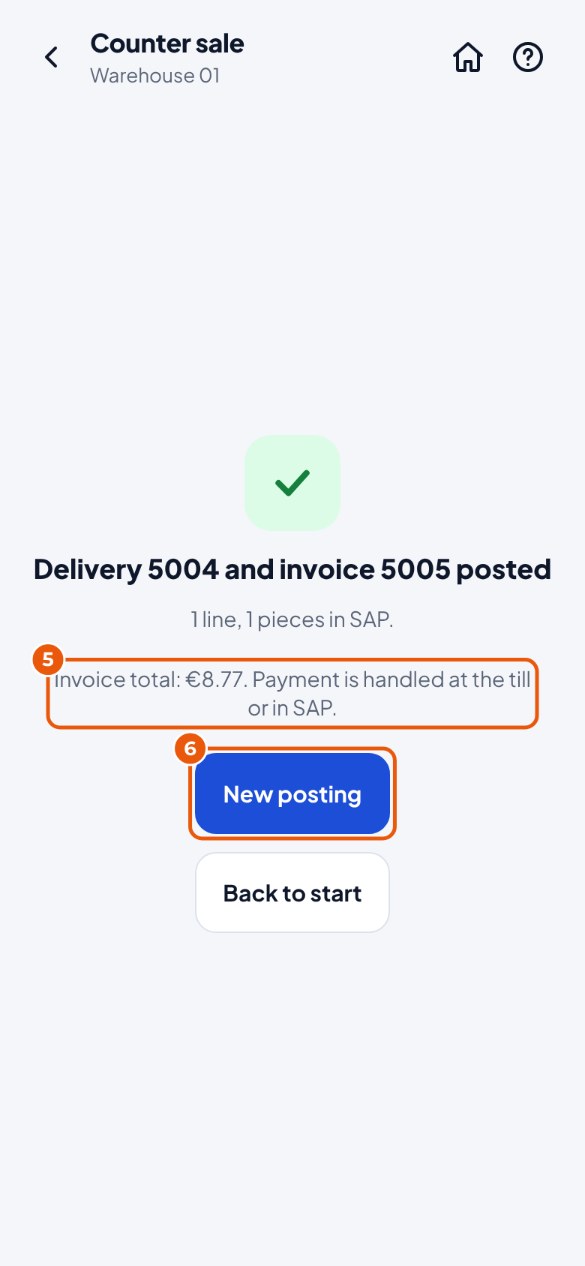
- KoonScan shows the number of the delivery and the invoice, with the invoice total 5. Take payment at the till or in SAP.
- Next customer? Tap New posting 6.
Making a credit note#
A customer brings something back from an invoice. KoonScan makes a credit note and puts the stock back.
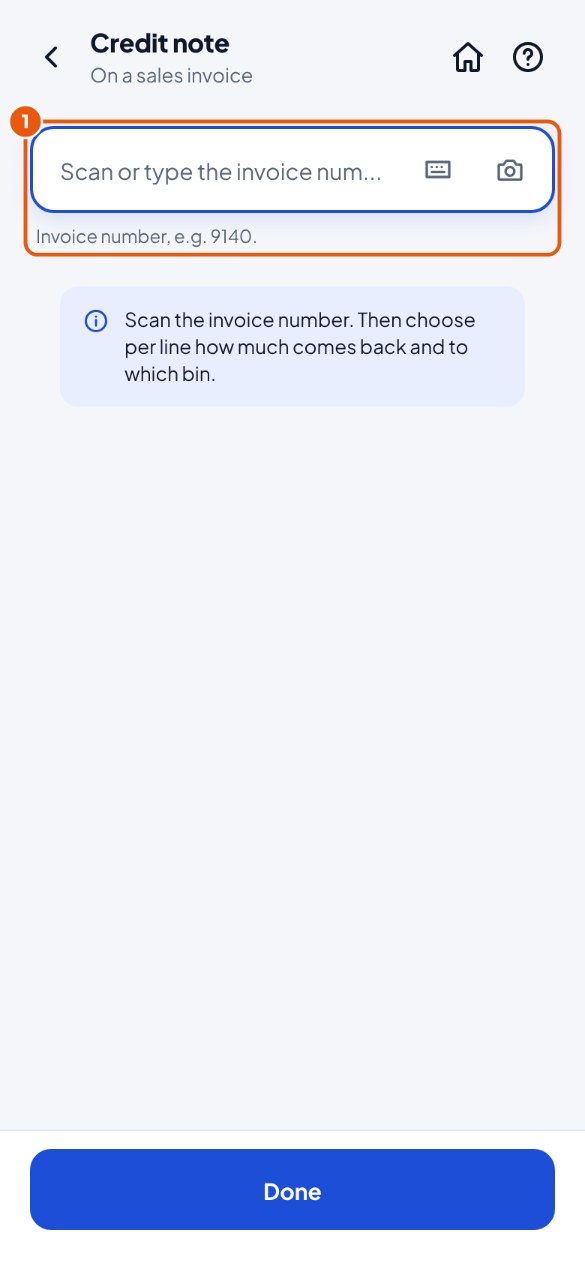
- Tap Sales → Credit note and scan the number of the invoice 1 (or type it).
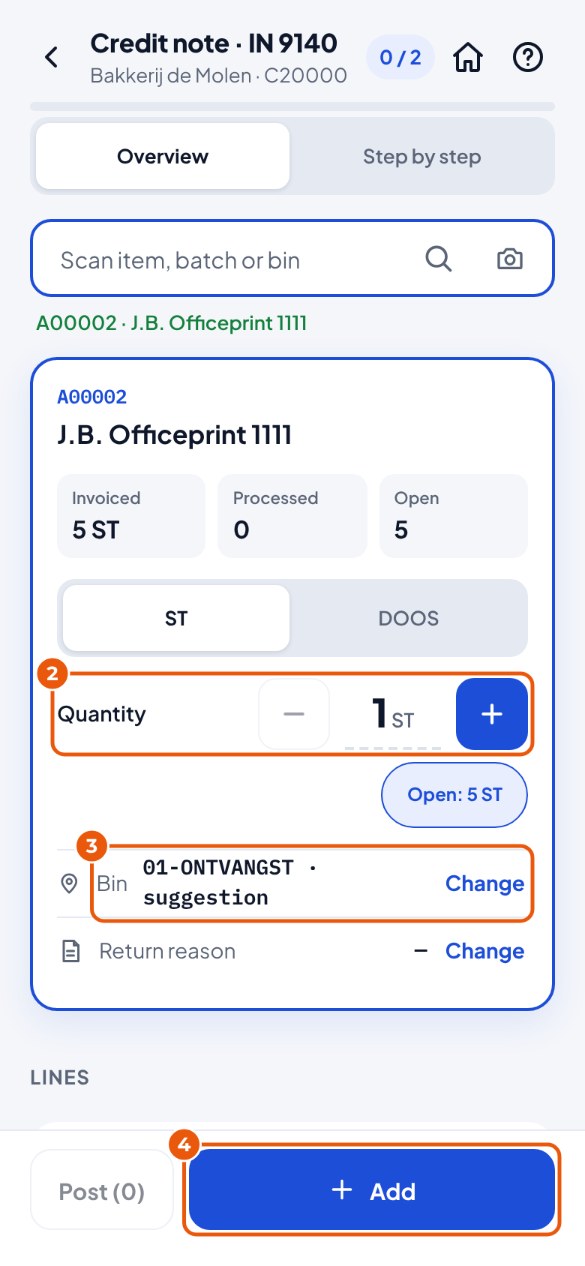
- Scan the item and enter the quantity that comes back 2. More than on the invoice is not possible.
- Look at the bin location it goes to 3. Another bin location? Tap Change or scan the bin location.
- Tap Add 4 and then Post to SAP.
Packing a delivery#
You divide a delivery over boxes or pallets. KoonScan puts the packages on the delivery in SAP and prints a label per package.
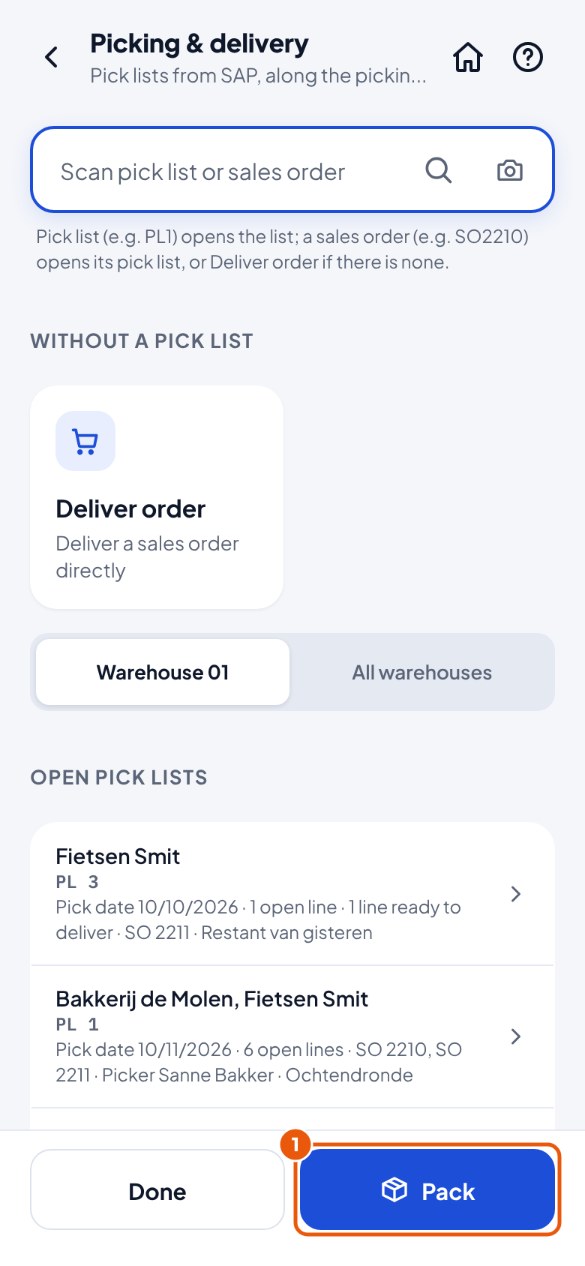
- After picking, tap Pack next to the delivery. Or: tap Picking & delivery → Pack 1 and scan the number of the delivery.
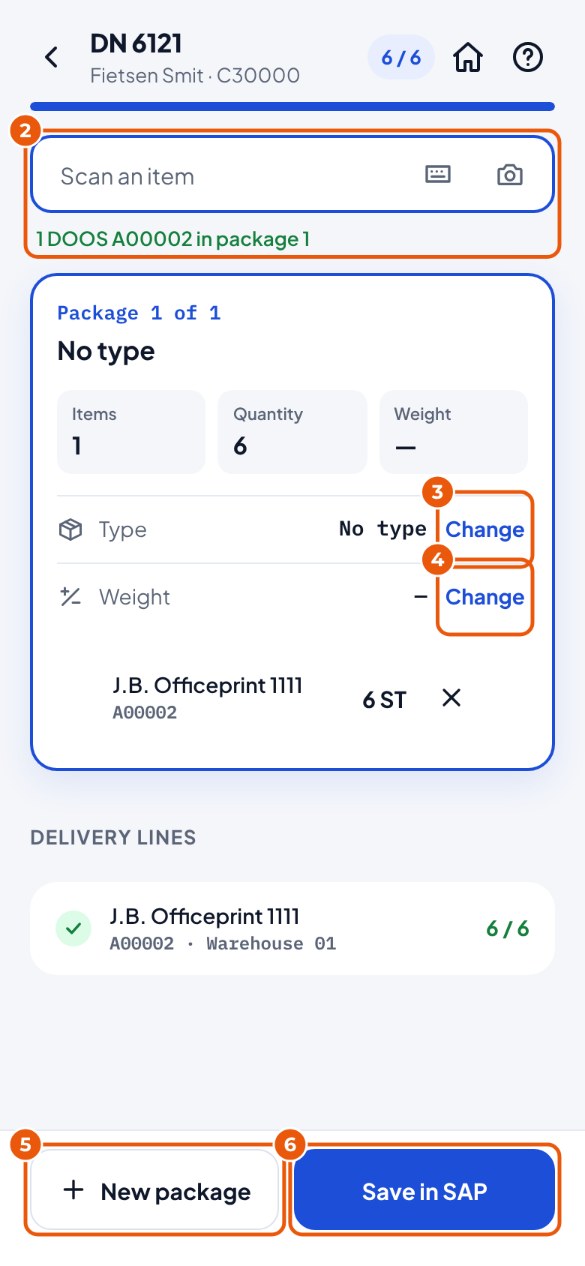
- Scan an item 2. It goes into package 1 (KoonScan creates the package by itself). A box barcode counts as the whole box.
- Next to Type, tap Change 3 and choose the type, for example "Large box".
- Do you know the weight? Next to Weight, tap Change 4 and enter it (kg).
- Is the box full? Tap New package 5 and carry on scanning. Tapping a line fills in the quantity that still has to be packed.
- Done? Tap Save in SAP 6 and then Save.
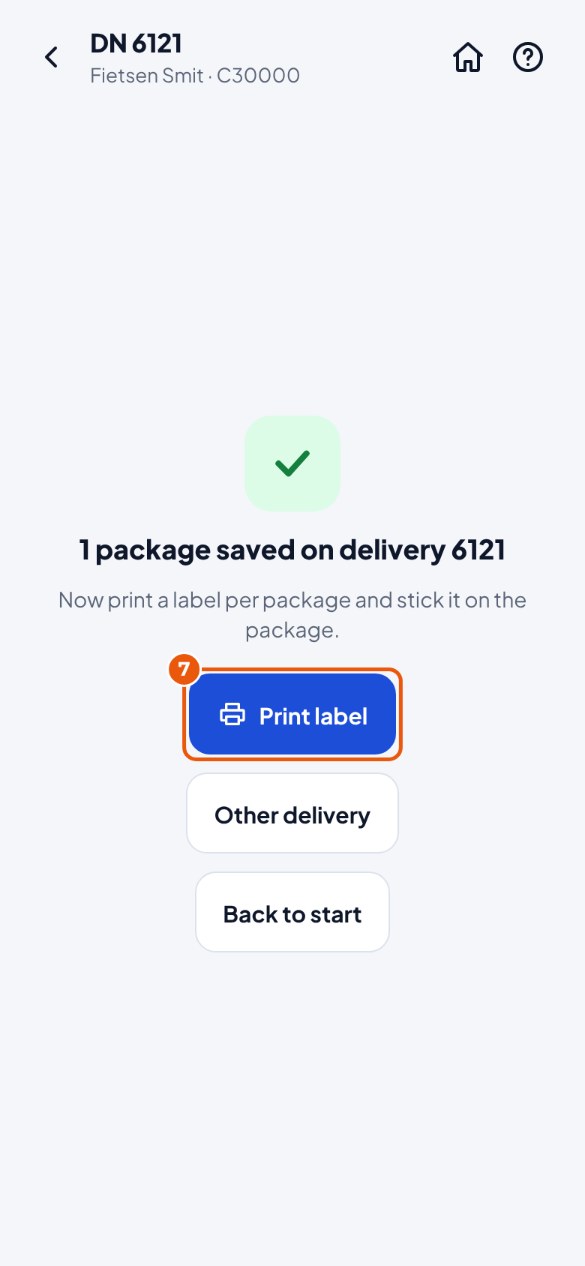
- Tap Print label 7 and stick its label on each package.