

Manual 2 · Chapter 6
Entering the licence key
You get the key from the customer portal. A key is valid for one SAP company: the company database (CompanyDB) you entered when you bought the licence or started the trial.
Getting the key from the customer portal#
- Open portal.koonsystems.com and sign in.
- Click Licences and then your KoonScan licence.
- Click Copy key. (Or Download .lic: a file with the key, handy if you enter the key on another computer.)
No licence yet? In the portal, under Licences, fill in the SAP company database (for example SBODEMO_NL) and click Start trial.
Entering the key#
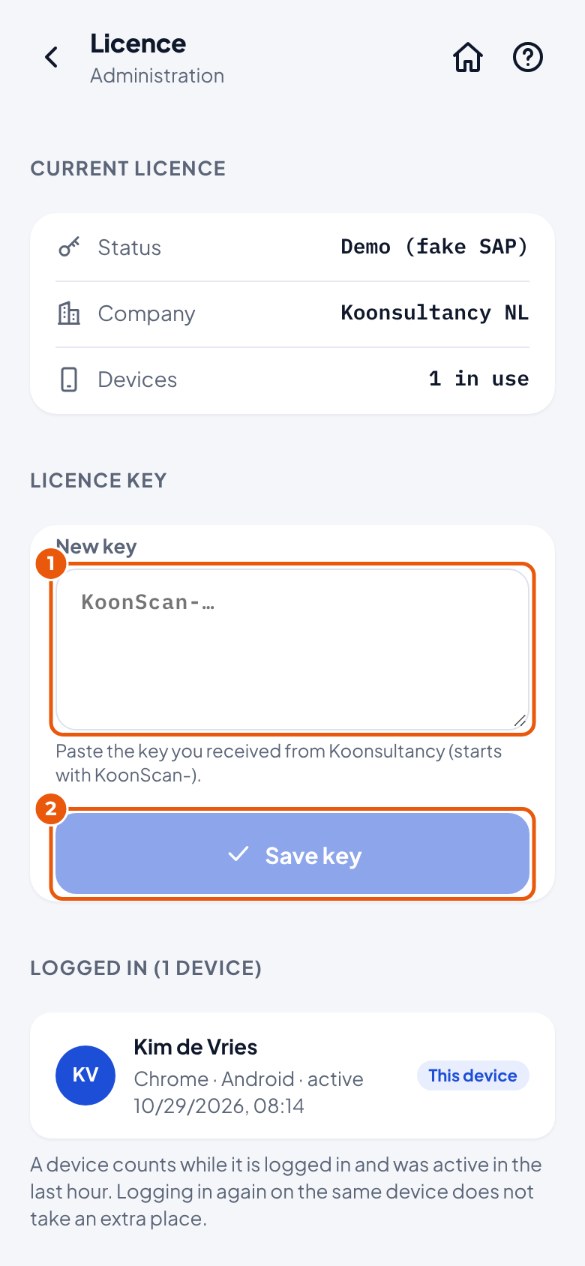
- Go to Administration → Licence and paste the key in New key 1 (everything from KoonScan- onwards).
- Tap Save key 2.
Good to know#
- Devices: the key is valid for a maximum number of devices at the same time. Under Logged in you see who is working where. Sign out device frees the place; the employee has to sign in again on that device and their work is kept.
- Reminder: thirty days before the end date everyone gets one reminder, and in the last seven days every day.
- Expired: then only Stock works, until there is a new key. There is no extra time.
- Automatic renewal: with a licence per month or per year, KoonScan itself fetches the new key from koonsystems.com, twice a day (the server needs internet for that; only the KoonScan version is sent). Under Licence → Automatic renewal you see Last checked and Last successful, you can tap Check now, and you can switch it off. Switched off, or no internet on the server? Then copy a new key from the customer portal before the current one expires, and enter it here.
- Key from: says where the current key comes from: Admin screen (entered here) or appsettings.Local.json (entered by your IT supplier in the settings file). A key entered here takes precedence. Remove key deletes the key entered here.
- Licence number and Key number: a key from the customer portal shows the Licence number (stays the same for your licence) and the Key number (new with every key). A trial shows "trial" after the customer.
- Withdrawn key: if KoonSystems withdraws the signature of a key, the licence screen says so and only Stock works. With automatic renewal KoonScan fetches a new key itself (tap Check now); without internet, enter a new key by hand.
- Without a key: free version, only Stock. A trial key (7 days, free) opens everything.
When the key is not accepted#
| Message | What you do |
|---|---|
| This key is not for this company (…) | The key belongs to another SAP company. In the customer portal, check the installation of the licence (Change installation, at most twice in 12 months), or start a trial for this company. |
| This is not a licence key. Copy the whole key (starts with KoonScan-). | Copy the key again with Copy key and paste it in one go. |
| This key runs longer than a key from the customer portal may | Fetch a new key in the customer portal or ask KoonSystems. |
| KoonSystems has withdrawn the signature of this key | Tap Check now under Automatic renewal, or copy a new key from the customer portal. |
| This key is for another KoonSystems product | You copied the key of another product. Take the KoonScan licence in the portal. |