

Manual 2 · Chapter 15
Appendix B: for advanced users
Packaging: pallets and crates out and back#
Does your warehouse work with exchange pallets or deposits? Then employees fill in what goes out and what comes back when delivering, receiving and returning. KoonScan puts that on the SAP document as lines; the balance per customer or supplier comes from SAP. You only set this up once.
- In SAP, create an item for each kind of packaging, for example EPAL (Euro pallet). The simplest is a non-inventory item (Inventory Item unticked, but Sales Item and Purchase Item ticked). Do you want to count the pallets in stock for real? Then create an inventory item; in a warehouse with bin locations that needs a packaging bin. Deposit? Put the price in the customer's price list.
- Go to Administration → Settings → Packaging and set Packaging (pallet exchange) on to On. Do you use an inventory item? Then enter the bin at Packaging bin warehouse ….
- Go to Administration → Packaging and tap Add type 1.
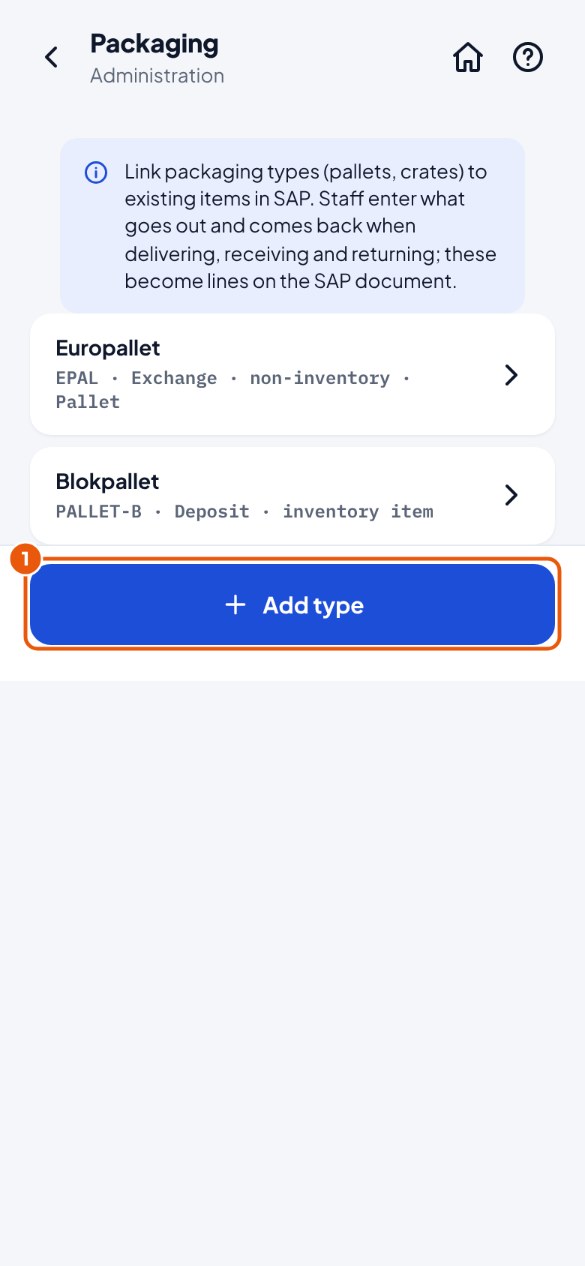
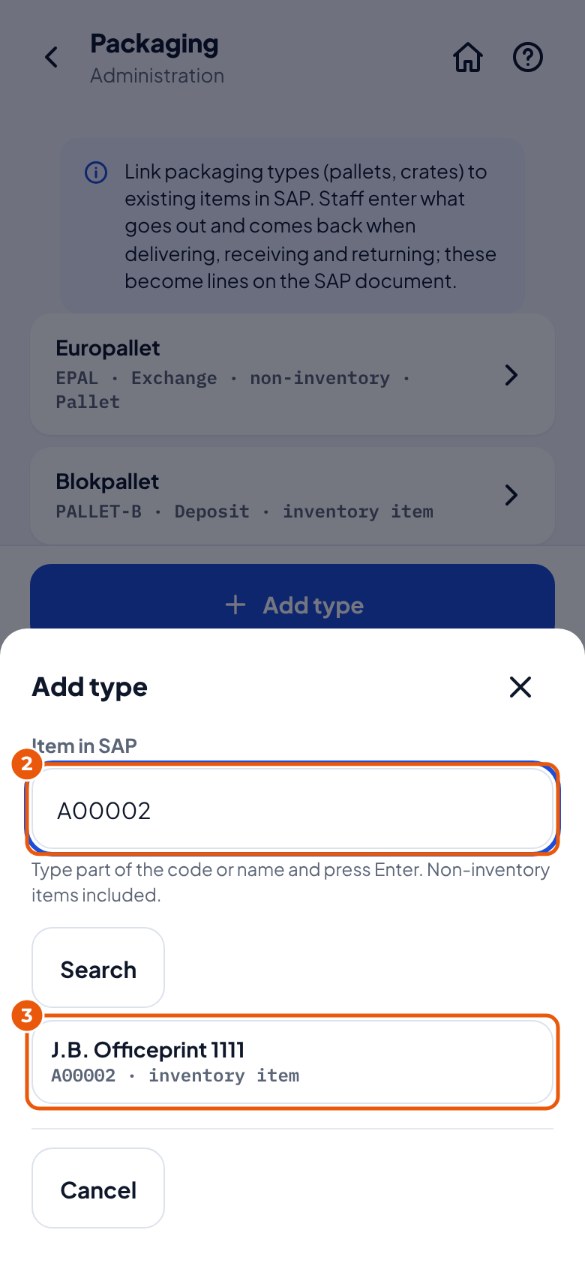
- Type part of the item code or name 2, press Enter and tap the item 3. Items with batches or serial numbers cannot be packaging.
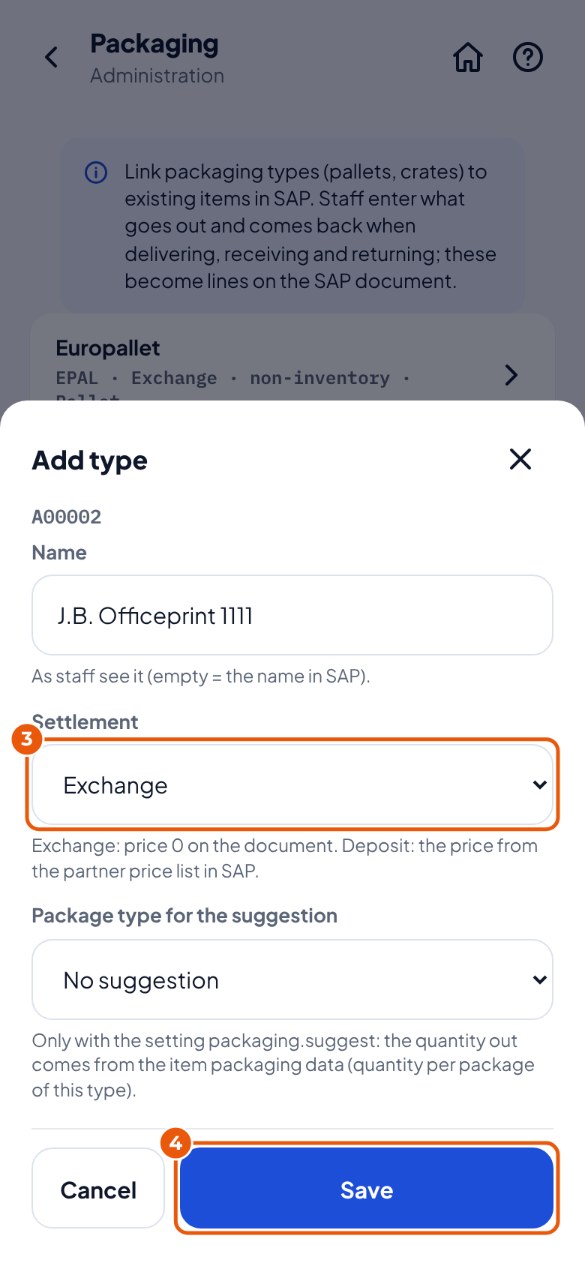
- At Settlement 3 choose Exchange (price 0 on the document) or Deposit (price from the price list in SAP). Tap Save 4.
Commands on the server#
Everything in the administration screen can also be done on the server itself. Right-click the Windows start button → Terminal (Admin), and type:
cd C:\KoonScan\app
.\Scan.Api.exe users list                    # all users
.\Scan.Api.exe users set-pin 12 --admin      # PIN + administrator (12 = employee number)
.\Scan.Api.exe users unlock 15               # unlock
.\Scan.Api.exe settings list                 # all settings
.\Scan.Api.exe sap picklist 12               # test the pick list link (read only)
With more than one company, add --company <code> at the end. To restart the service: Restart-Service KScan.
Database file or SQL Server?#
By default KoonScan keeps its data in a database file per company (C:\KoonScan\data\KScan.db). That is fine for most warehouses: measured with 50 scanners at the same time, a scan took on average less than a hundredth of a second. Choose SQL Server Express if more than 50 scanners work at the same time, or if your IT supplier wants to manage the database in SQL Server. Tick it in the installer, or install it yourself (below), and choose SQL Server in the wizard. Moving existing data from a database file to SQL Server is not possible: decide before you start working.
Installing SQL Server Express yourself#
Only needed if you want SQL Server Express and the installer could not install it. Server without internet? On another computer, download "SQL Server 2025 Express" from Microsoft (Download Media → Express Core), put the file SQLEXPR_x64_ENU.exe next to KoonScan-Setup.exe and start KoonScan-Setup again: it will then use that file. To install it entirely yourself:
-
Start the SQL Server Express installer and choose Custom → New SQL Server standalone installation.
-
Tick only Database Engine Services. At Instance Configuration choose Named instance and type KSCAN. Choose Windows Authentication.
-
Install KoonScan (if that has not been done yet) and give KoonScan the right to create a database. Terminal (Admin):
sqlcmd -S localhost\KSCAN -E -Q "CREATE LOGIN [NT SERVICE\KScan] FROM WINDOWS; ALTER SERVER ROLE dbcreator ADD MEMBER [NT SERVICE\KScan]" -
In the wizard, at Database choose localhost\KSCAN with Windows Authentication.
Silent install (without questions)#
KoonScan-Setup-<version>.exe /VERYSILENT /SUPPRESSMSGBOXES /DIR=C:\KoonScan /PORT=5443
KoonScan-Setup-<version>.exe /VERYSILENT /SQLEXPRESS=install    # also install SQL Server Express (default: database file)
C:\KoonScan\unins000.exe /VERYSILENT /SUPPRESSMSGBOXES      # silent uninstall
| Option | What it does |
|---|---|
/DIR=<folder> |
Installation folder (default C:\KoonScan). |
/PORT=<number> |
Port for the devices (default 5443). |
/SQLEXPRESS=install |
Also install SQL Server Express with the instance KSCAN. Without this option a silent installation uses the database file. |
/SQLEXPRESS=skip |
Never install SQL Server Express (if KSCAN is already there, KoonScan still gets its login). |
/SQLEXPRESSURL=<address> |
Download SQL Server Express from another address (for example a share in your own network). |
/SERVICEACCOUNT=LocalSystem |
Run the service as Local System instead of its own restricted account NT SERVICE\KScan. Only if your IT supplier asks for it. |
A silent installation does not open the wizard: on the server, open Start menu → KoonScan → KoonScan setup. Started again over an existing installation, the installer silently updates it, as in chapter 10. The PowerShell scripts in the zip package are in chapter 2.
Settings without the wizard#
Want to set up KoonScan entirely with a script? The zip package contains appsettings.Local.example.json: an example of C:\KoonScan\appsettings.Local.json with SAP, database, licence and more companies. Fill it in, put it in the installation folder and start the service; then give the first administrator a PIN with users set-pin (Commands on the server). Passwords you type in this file yourself stay readable: only administrators may open the folder. If in doubt, use the wizard: it tests every step and stores the passwords encrypted for this server.
How it is built#
- The Windows service KoonScan runs as its own restricted account
NT SERVICE\KScanand is the only thing that talks to SAP, through the Service Layer. - The web app is at
https://<server>:5443/for the devices and athttp://localhost:5080on the server itself. - The settings are in
C:\KoonScan\appsettings.Local.json; passwords are encrypted and can only be read on this server. - The database file is in
C:\KoonScan\data, the nightly backups inC:\KoonScan\data\backup. An update of KoonScan leaves that folder alone. - A SQL Server other than KSCAN is only allowed with its own licence (not the one from SAP Business One); the wizard asks you to confirm that.