
Manual 3 · Chapter 8
Returns, receiving without an order, stock in/out
Return from a customer or to a supplier#
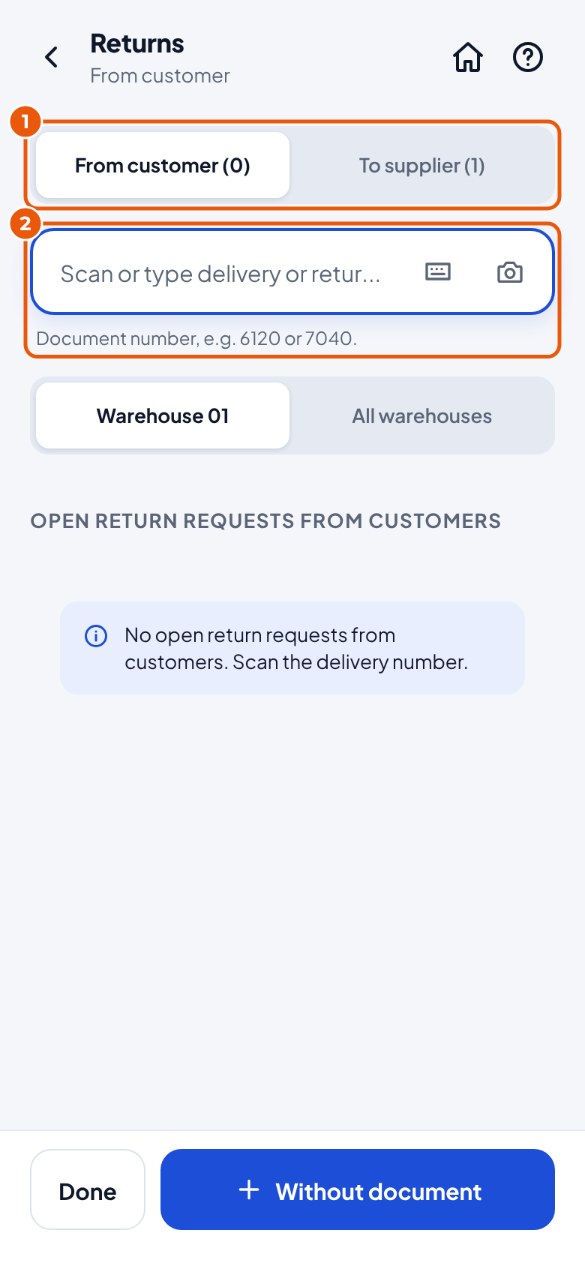
- Tap the Returns tile and at the top choose From customer or To supplier 1.
- Scan the number of the delivery (from a customer) or the goods receipt (to a supplier) 2, or choose a return request from the list.
- From a customer: scan the item; the bin location is suggested. To a supplier: first scan the bin location you are taking it from, then the item.
- Tap Add and then Post to SAP.
Return without a document#
Does something come back without a delivery or return request, or does something go back to a supplier without a goods receipt? Then you choose the customer or supplier yourself.
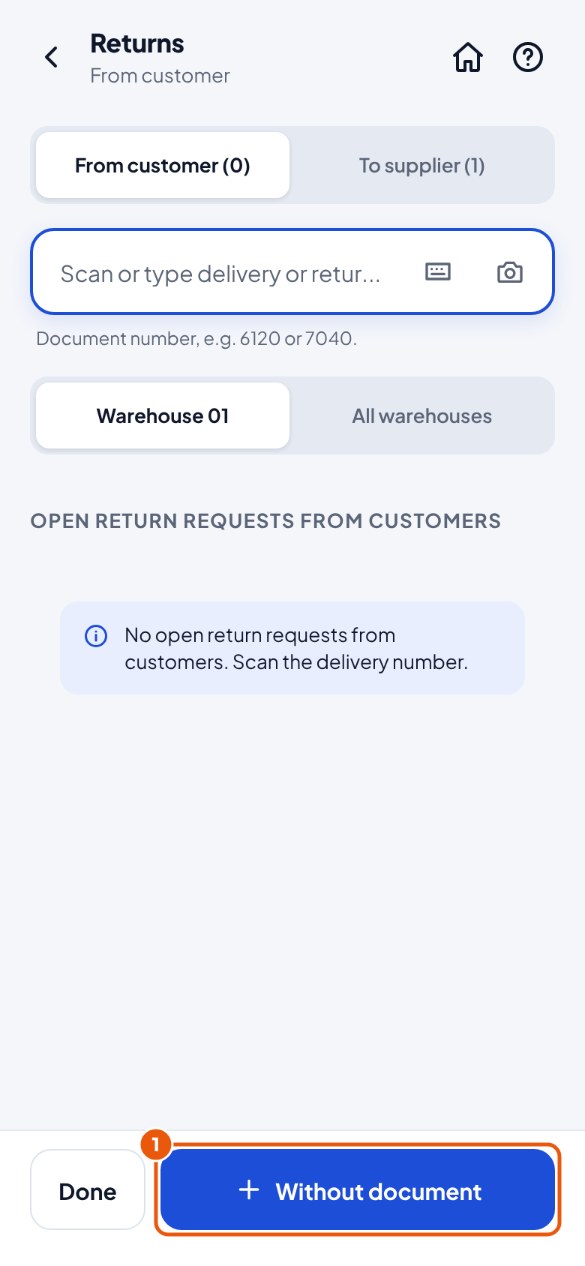
- Tap the Returns tile, at the top choose From customer or To supplier, and at the bottom tap Without document 1.
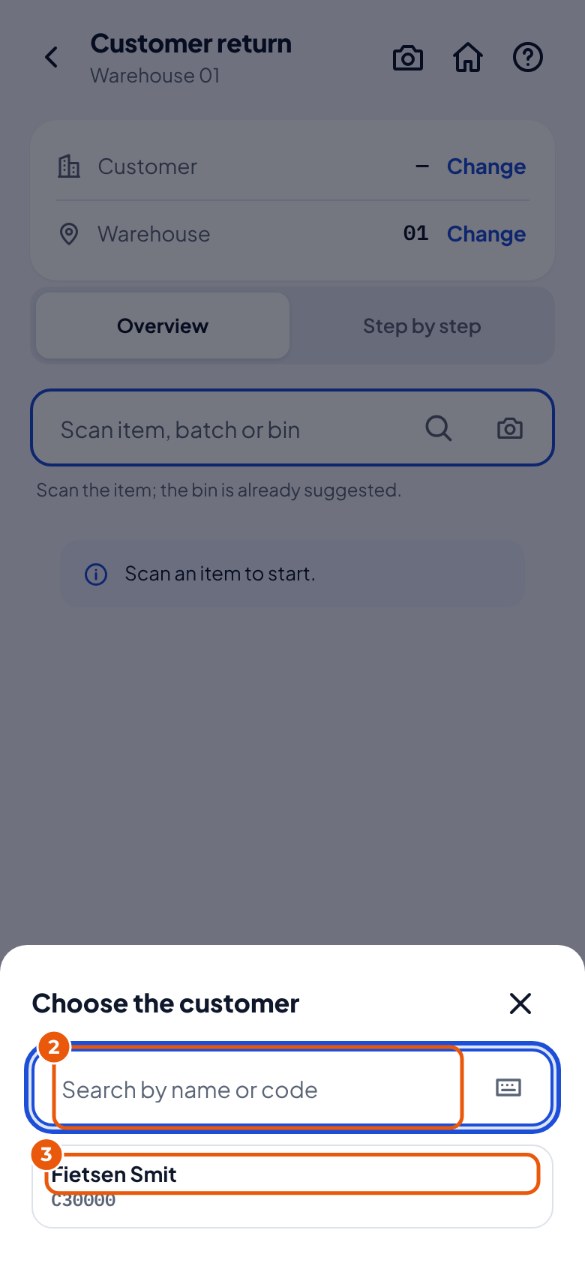
- Type part of the name or code of the customer (or supplier) 2 and press Enter.
- Tap the right customer 3.
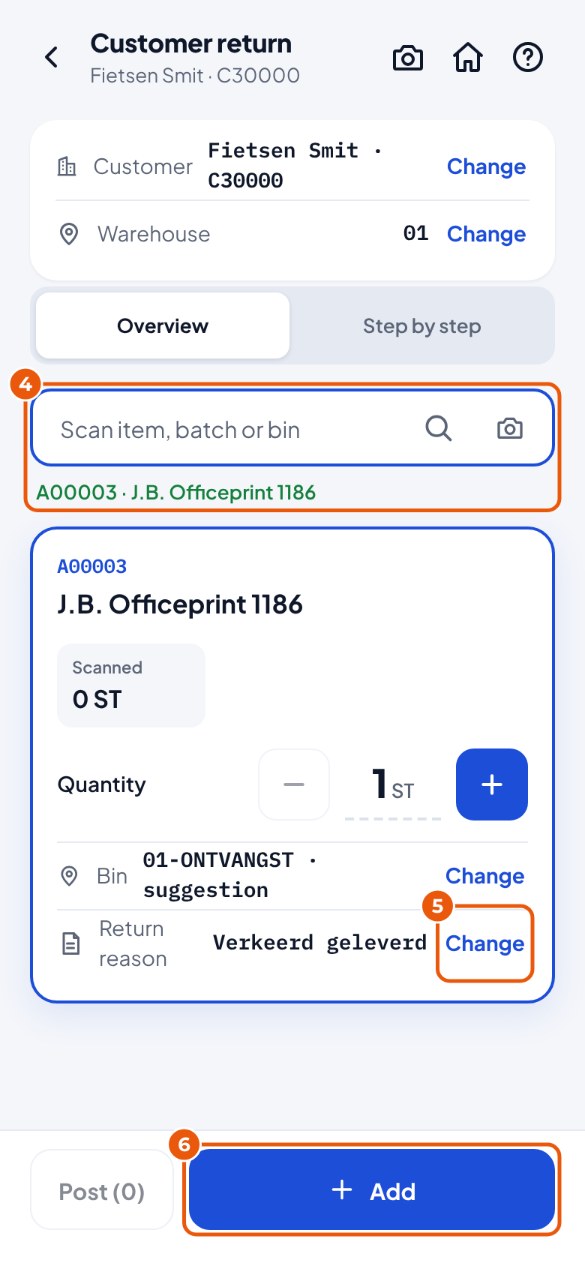
- Scan the item 4. To a supplier: first scan the bin location you are taking it from.
- Does your company ask for a return reason? Tap the Return reason line 5 and choose the reason, for example "Damaged".
- Tap Add 6. Everything scanned? Tap Post to SAP.
Receiving without a purchase order#
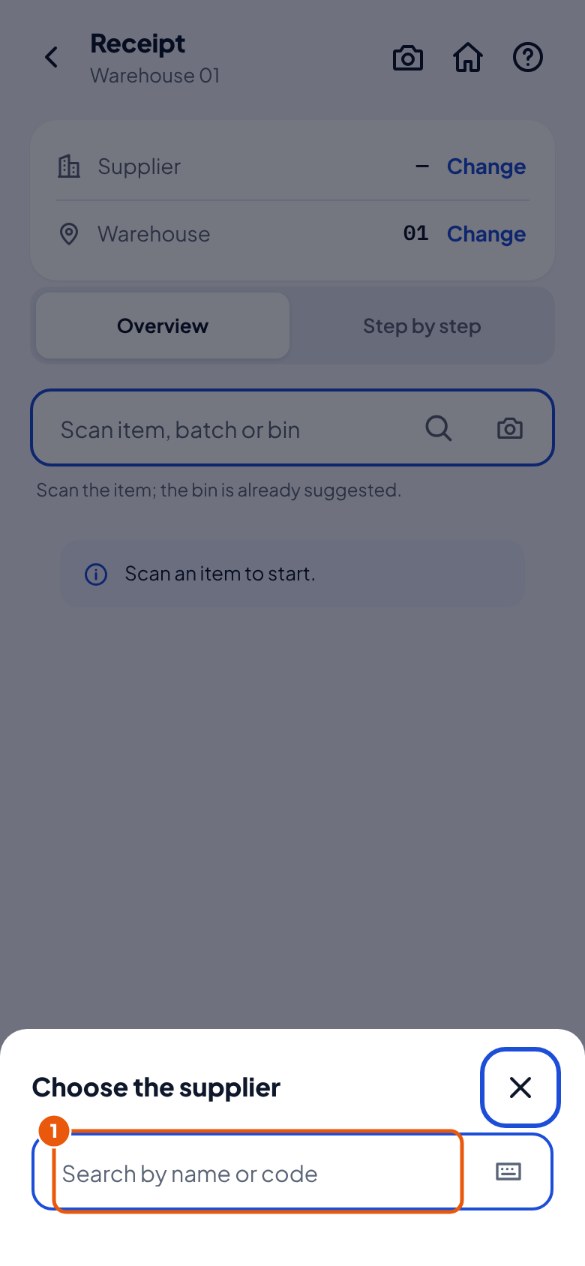
- Tap Receiving and then Without purchase order at the bottom. Search for the supplier by name or code 1 and tap it.
- Scan the items (the bin location is suggested), tap Add and post.
Adding or removing stock, without a document#
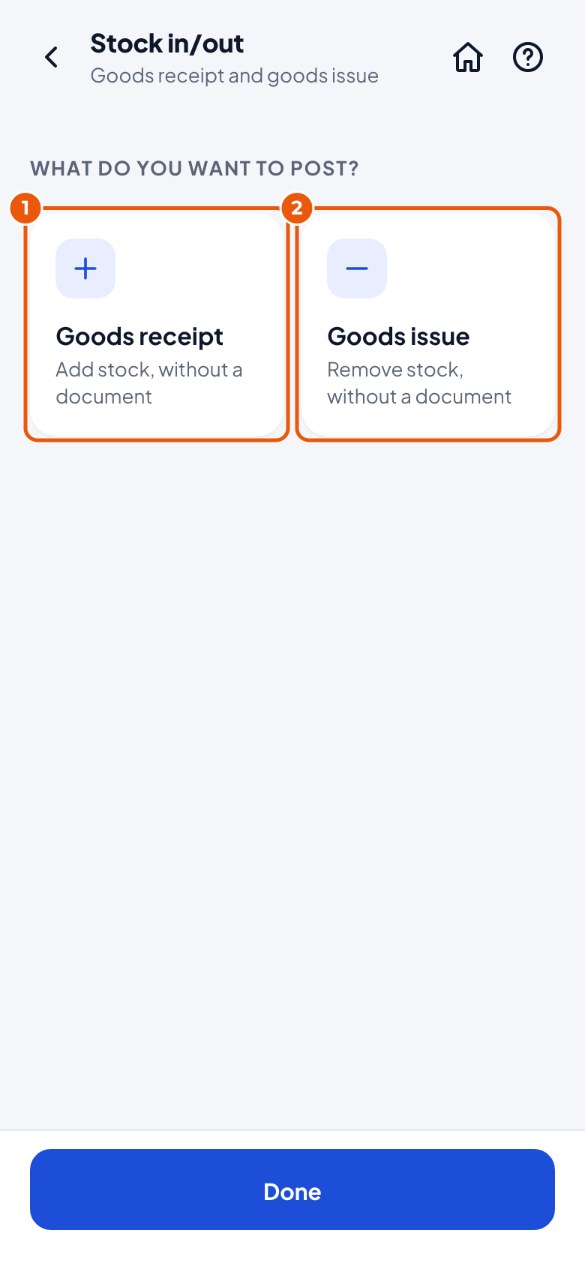
- Tap the Stock in/out tile and choose Goods receipt 1 (add) or Goods issue 2 (remove).
- Choose the reason (for example "Breakage"). Scan the bin location and the items, tap Add and post.