
Manual 3 · Chapter 13
Batches and delivering an order
Look at and move a batch, and deliver a sales order without a pick list. Delivering an order falls under the Picking & delivery permission, moving under Transfer.
Looking up a batch#
You want to know what a batch is and where it is.
- Scan the batch on the start screen or in Stock. You see the item, the expiry date, the attributes and how much is there, how much is allocated to orders and how much is still available 1.
- Everything of this batch to one bin location? Tap Move whole batch 2 (see below).
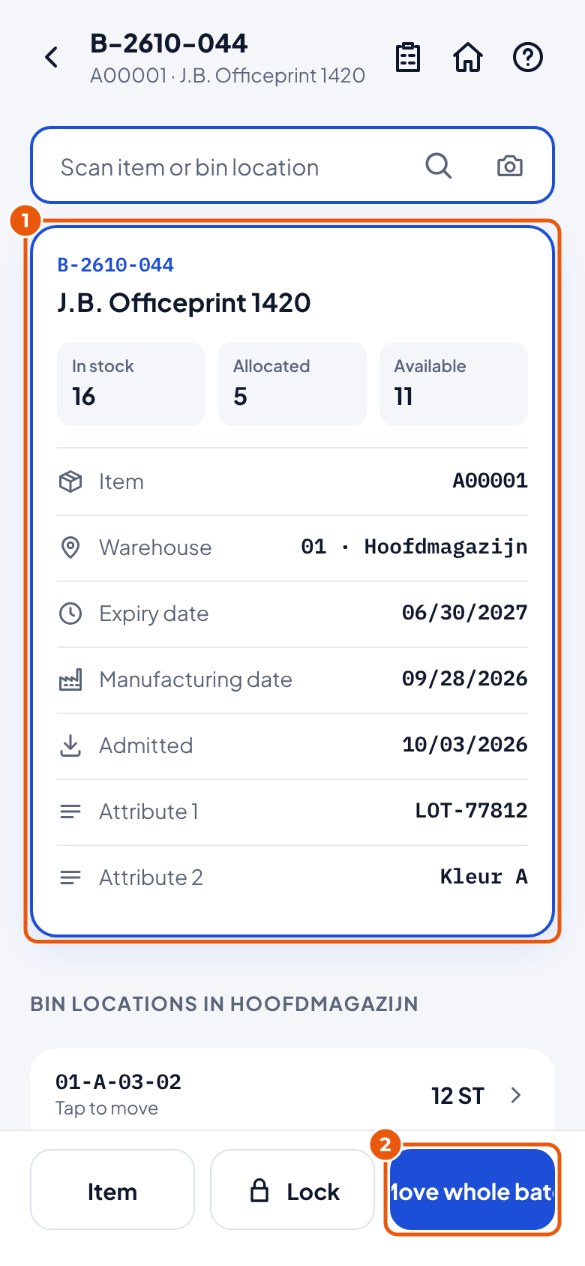
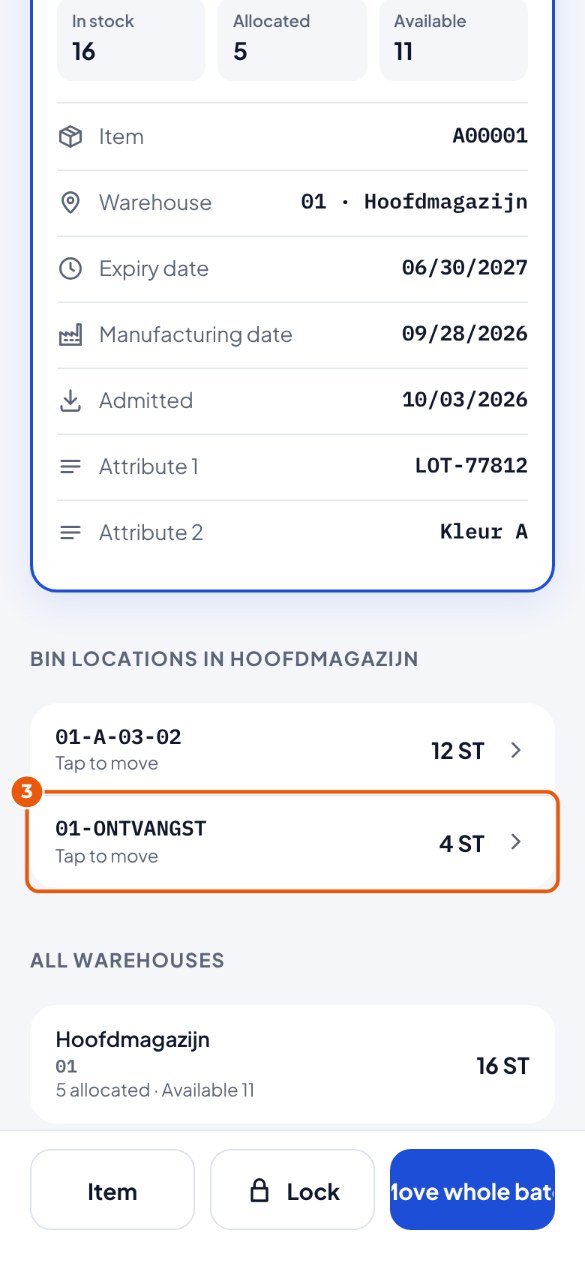
- Under "Bin locations in …" you see where the batch is. Tap a bin location 3 to move only that part: KoonScan opens the Move screen with the bin location, the item, the batch and the quantity already filled in.
Locking a batch#
You see damage or doubt the quality. Lock the batch and it no longer goes to customers. Anyone with the Stock permission may lock a batch.
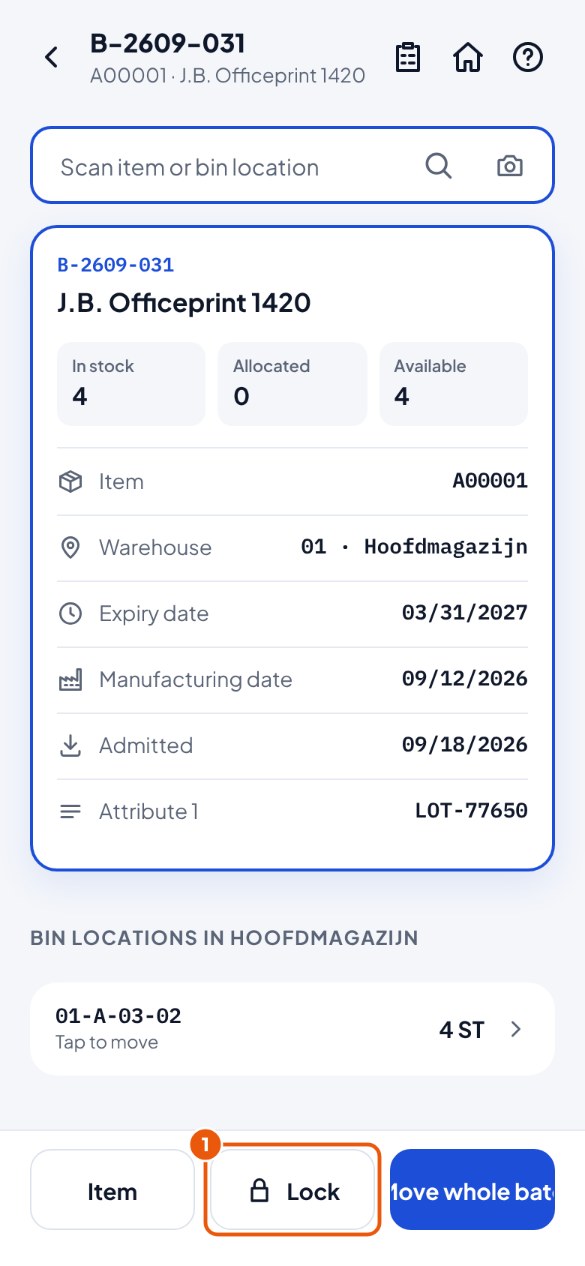
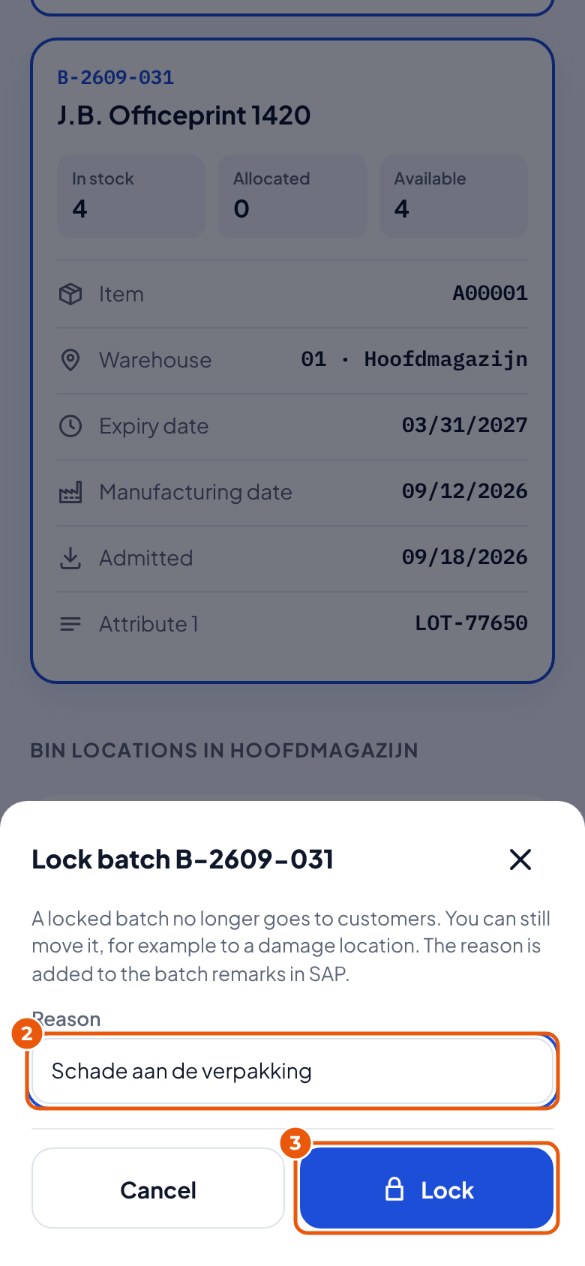
- Scan the batch and tap Lock 1.
- Type the reason 2, for example "Damaged packaging". This is required.
- Tap Lock 3.
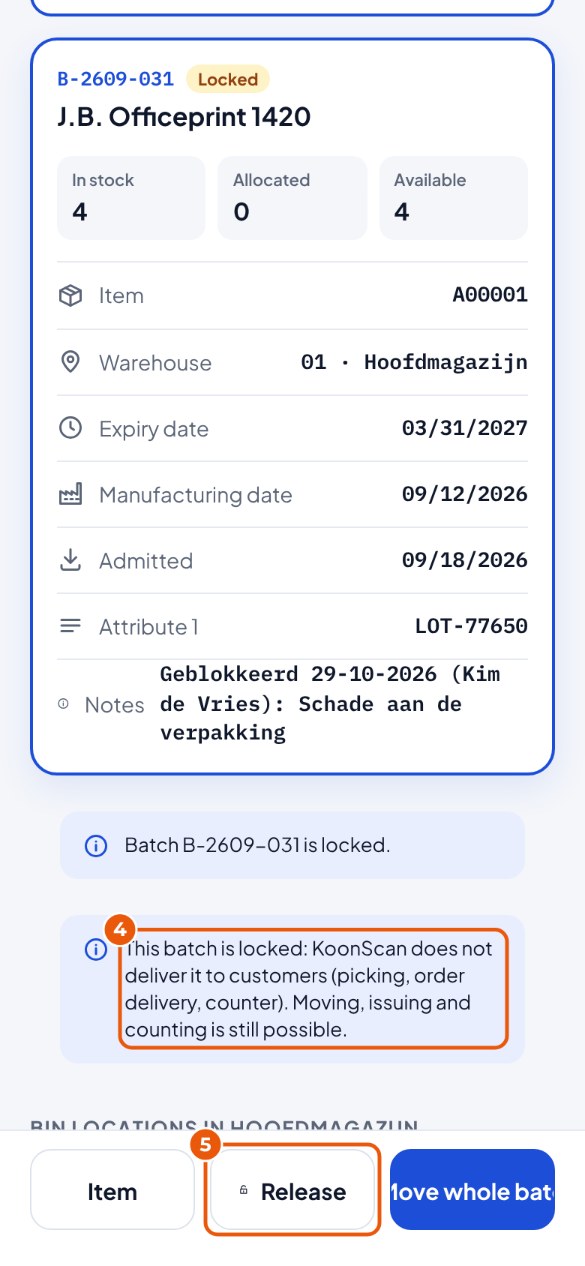
- KoonScan says the batch is locked 4. In SAP it is set to Locked, with your reason in the remarks.
- Fine again? Whoever has the Bin locations permission taps Release 5.
A batch that expires earlier#
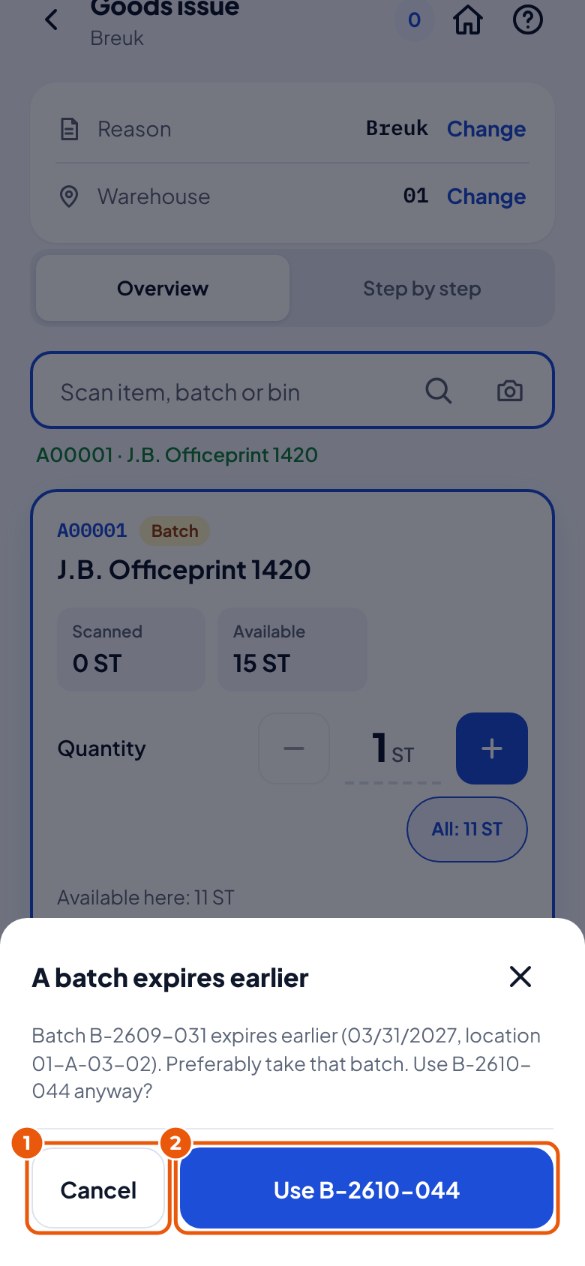
Is FEFO on (the administrator decides that)? Then KoonScan watches the expiry date: what expires first goes first.
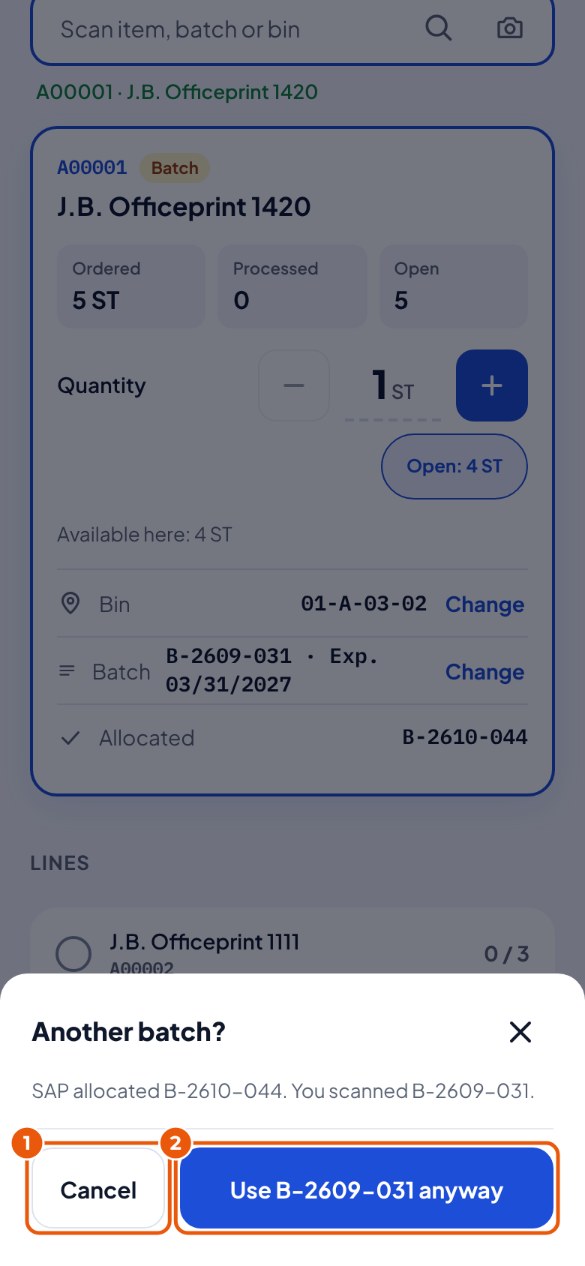
- Do you scan a batch while there is a batch that expires earlier? Then KoonScan names that batch and the bin location. Tap Cancel 1 and take that batch.
- Do you have a good reason to take this batch anyway? Tap Use … 2.
Moving a whole batch#
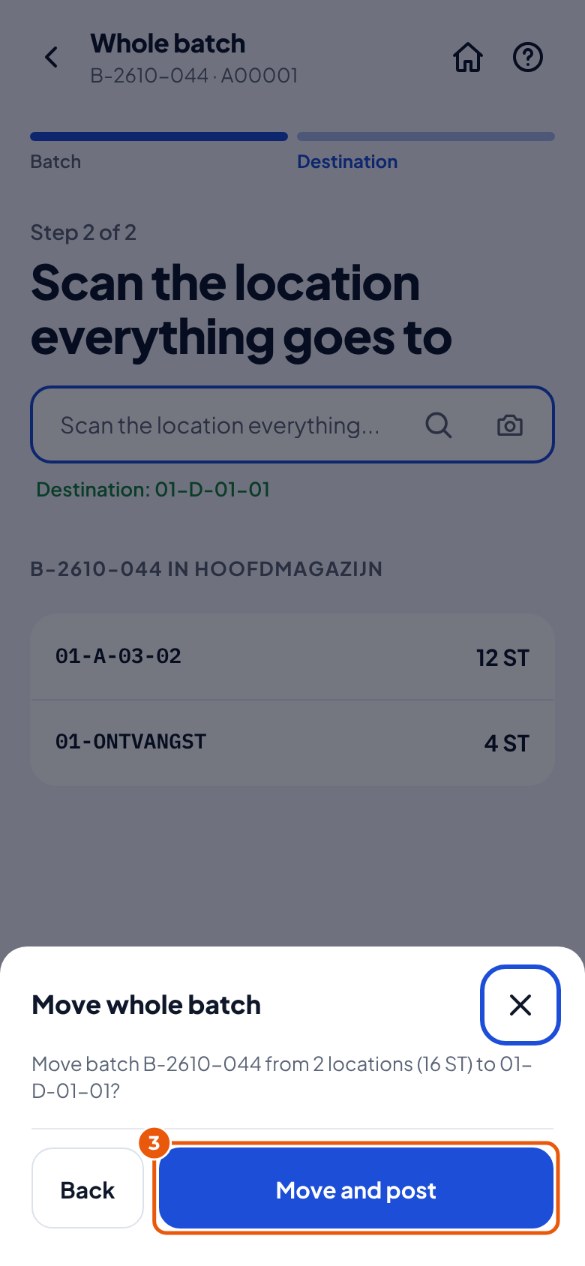
Everything of one batch, spread over several bin locations, to one bin location in one go.
- Tap Move whole batch (on the batch screen, or via Transfer → Whole batch and then scan the batch).
- You see on which bin locations the batch is. Walk to the new place and scan the destination bin location.
- Are the number of bin locations and pieces right? Tap Move and post 3.
Delivering an order without a pick list#
Does the office not make pick lists? Then you deliver the sales order directly. With or without batches.
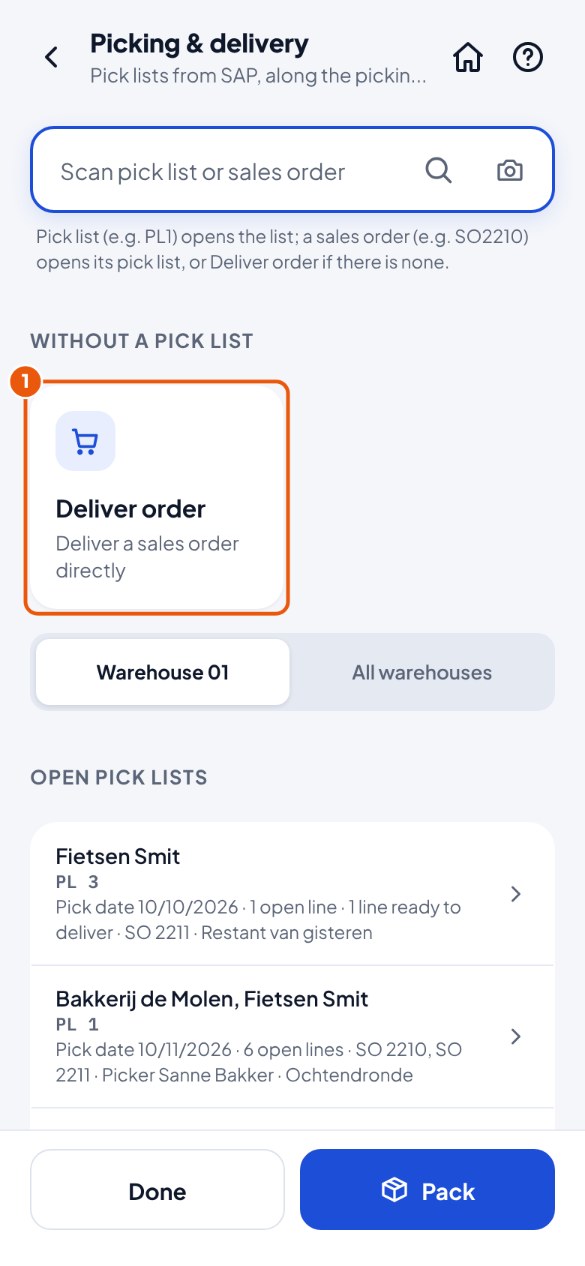
- Tap Picking & delivery and then Deliver order 1.
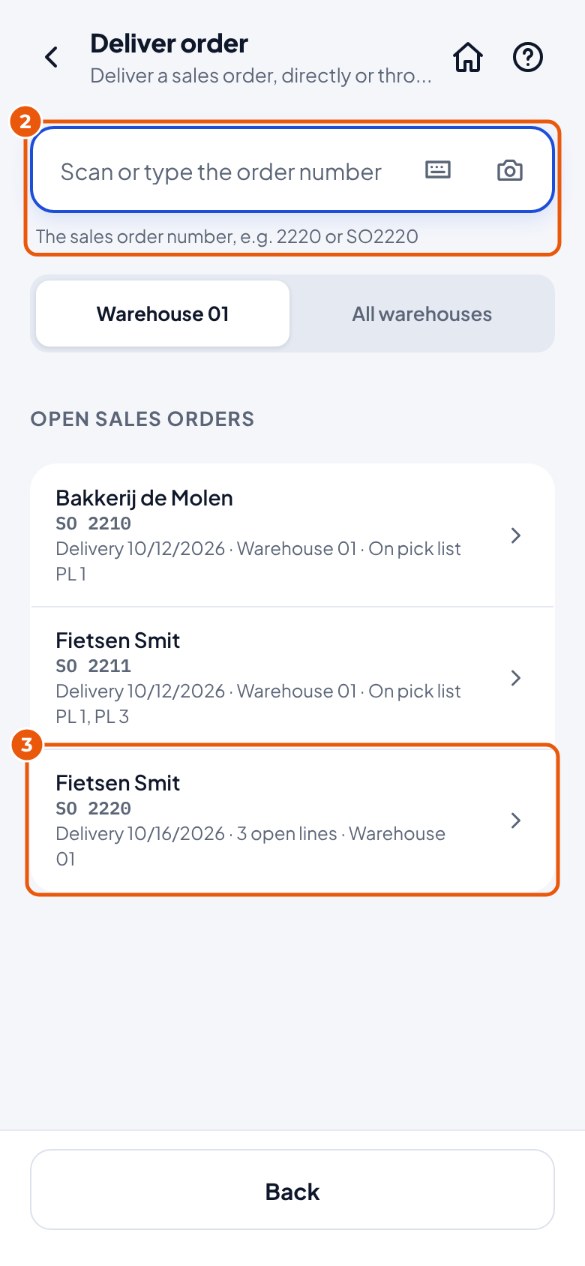
- Scan or type the order number 2, or tap the order in the list 3.
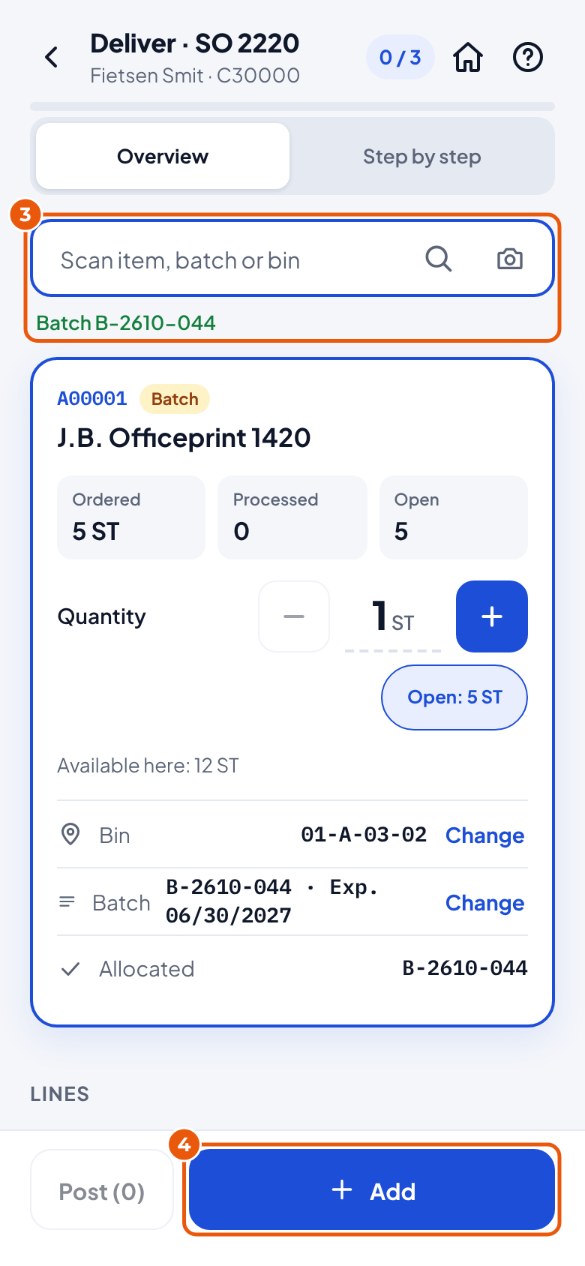
- Scan the bin location you pick it from and then the item or the batch 3. If SAP has allocated a batch, it is already filled in.
- Change the quantity if needed and tap Add 4. Do this for every item.
- Everything picked? Tap Post to SAP 5 and confirm.
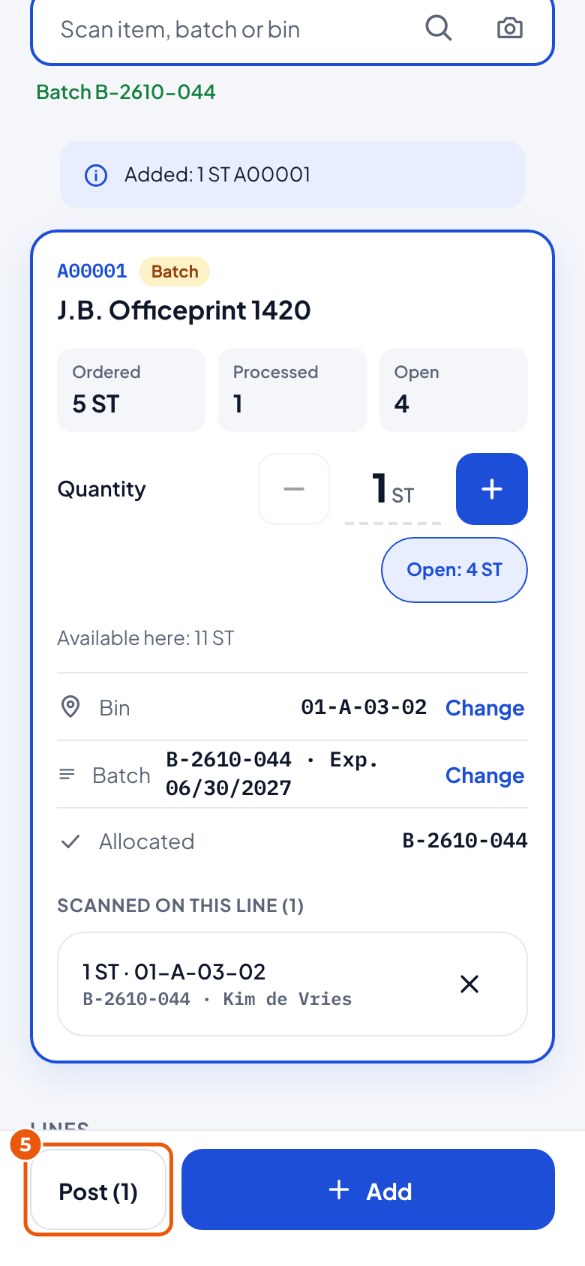
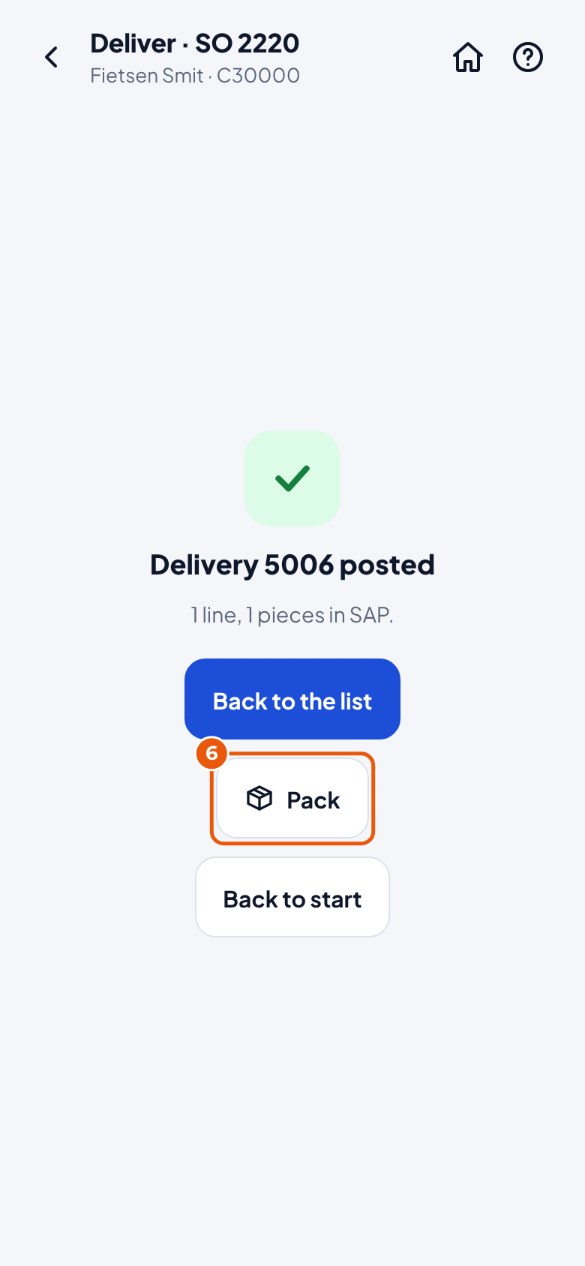
- Done: the delivery is in SAP. Does it have to go in boxes? Tap Pack 6 (see chapter 12).
A different batch than allocated#
SAP has allocated a batch to the line (on the pick list or the sales order), but you scan another one.
- KoonScan asks "Another batch?". Do you want to take the allocated batch after all? Tap Cancel 1 and scan the right one.
- Is the other batch fine (for example because the allocated one has run out)? Tap Use … anyway 2.