Manual 3 · Chapter 6
Picking and delivery
Applies to KoonScan version 1.1.1 Download this manual (PDF)
You collect the items on a pick list. KoonScan walks the picking route with you and, when you post, creates the delivery in SAP.
Picking the pick list#
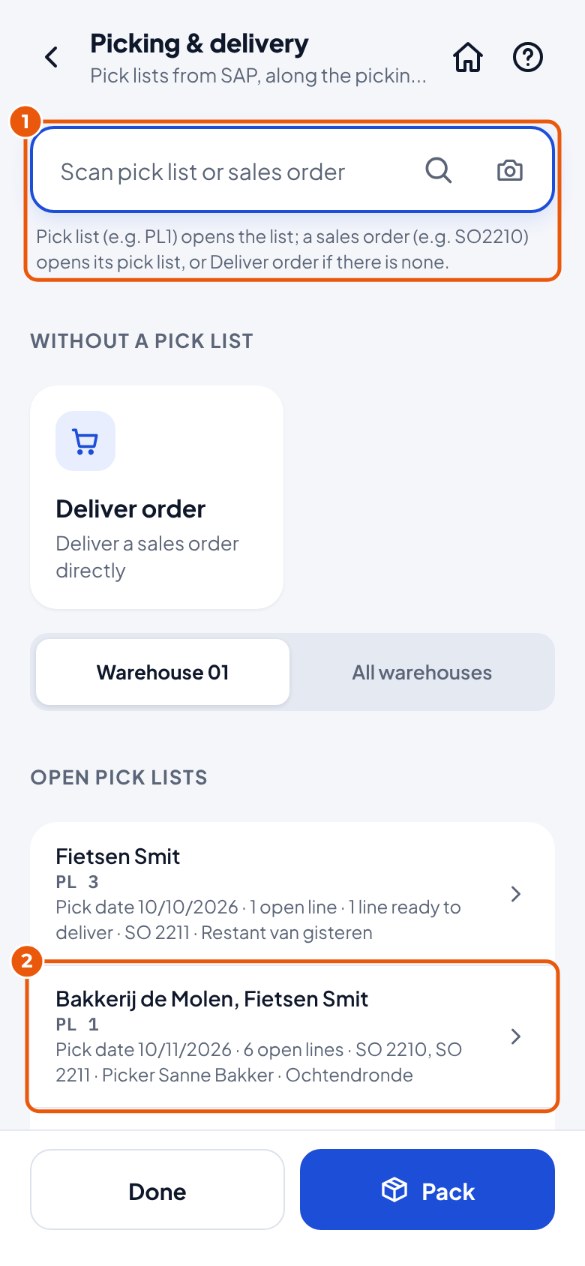
Tap the Picking & delivery tile. Scan the pick list (PL plus number) or the sales order (SO plus number) 1 , or tap the pick list 2 .
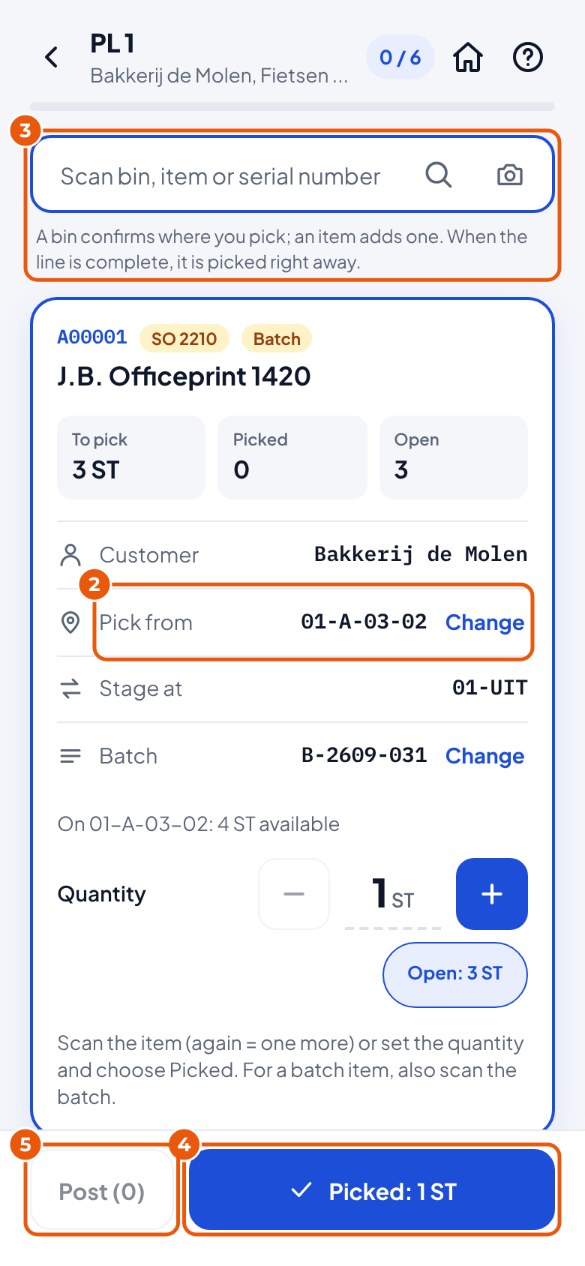
Walk to the bin location at Pick from 2 . Picking it somewhere else? Then scan that bin location.
Scan the item 3 : one is added. Once the line is complete, the next one is ready by itself. Or set the quantity and tap Picked 4 at the bottom.
Everything picked? Tap Post 5 and confirm.
Check: this is what you see now
KoonScan reports which deliveries have been created in SAP (one per customer). For a pick list for production, it becomes an issue for production.
Tip
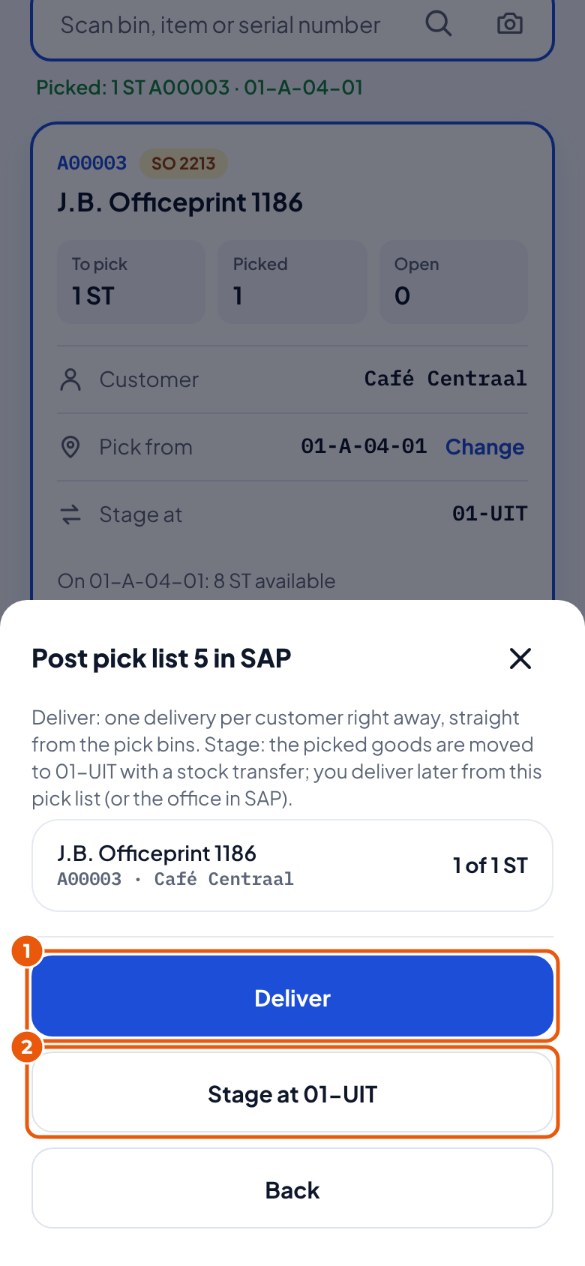
Does your warehouse have a staging bin (for example 01-OUT)? Then when posting you choose Deliver (a delivery right away) or Stage at 01-OUT (deliver later). See "Staging and delivering later " below.
Tip
Does the delivery have to go in boxes or on a pallet? After posting, tap Pack at the delivery. See chapter 12 .
Tip
Does KoonScan ask "Another batch? "? You scanned a different batch from the one SAP allocated to the line. See chapter 13 .
Tip
You deliver a sales order without a pick list with Deliver order (chapter 13 ). If you scan the order number, KoonScan chooses by itself: if the order is on a pick list (even one that has already been staged), the pick list opens; otherwise Deliver order.
Tip
Could you not find everything? At Post you see "3 of 5 " per line and a warning. If you post anyway, the rest stays open on the order (no longer on this pick list). You deliver the rest later with Deliver rest (below). Scanning a batch label only selects the batch; you scan the item separately.
Staging and delivering later#
Your warehouse has a staging bin (for example 01-OUT). You first stage the picked goods there and deliver them later, for example when the truck arrives.
Everything picked? Tap Post to SAP and then Stage at 01-OUT 2 . (Does it go out right away? Then tap Deliver 1 : KoonScan creates the delivery immediately.)
Check: this is what you see now
KoonScan reports "Staged at 01-OUT". Everything is now on 01-OUT; in SAP the pick list is set to picked.
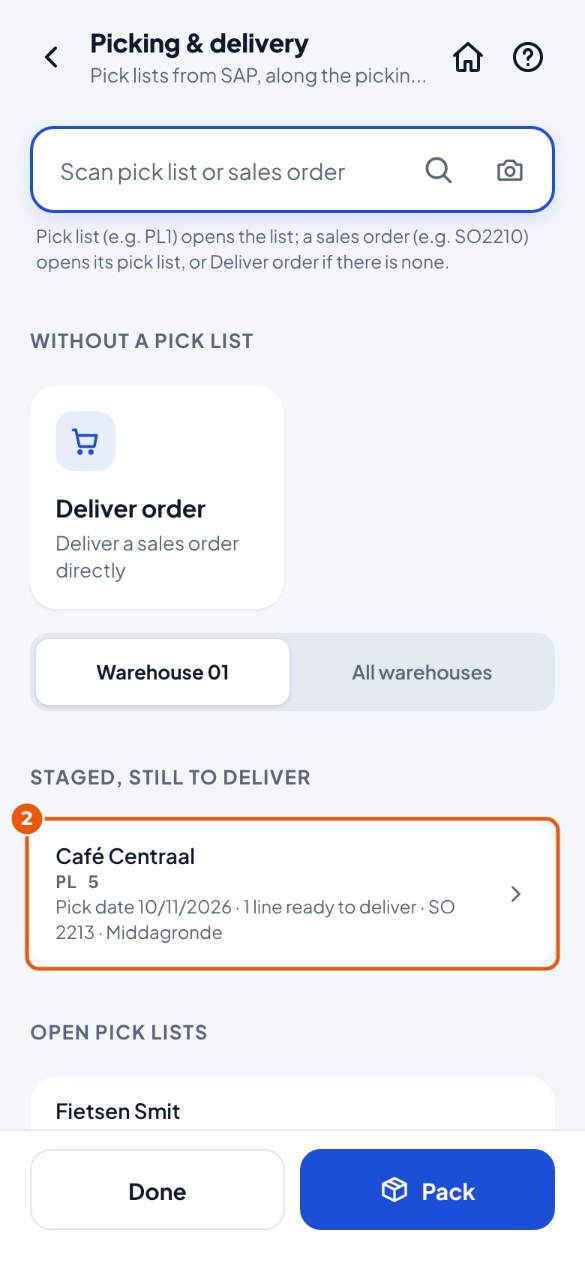
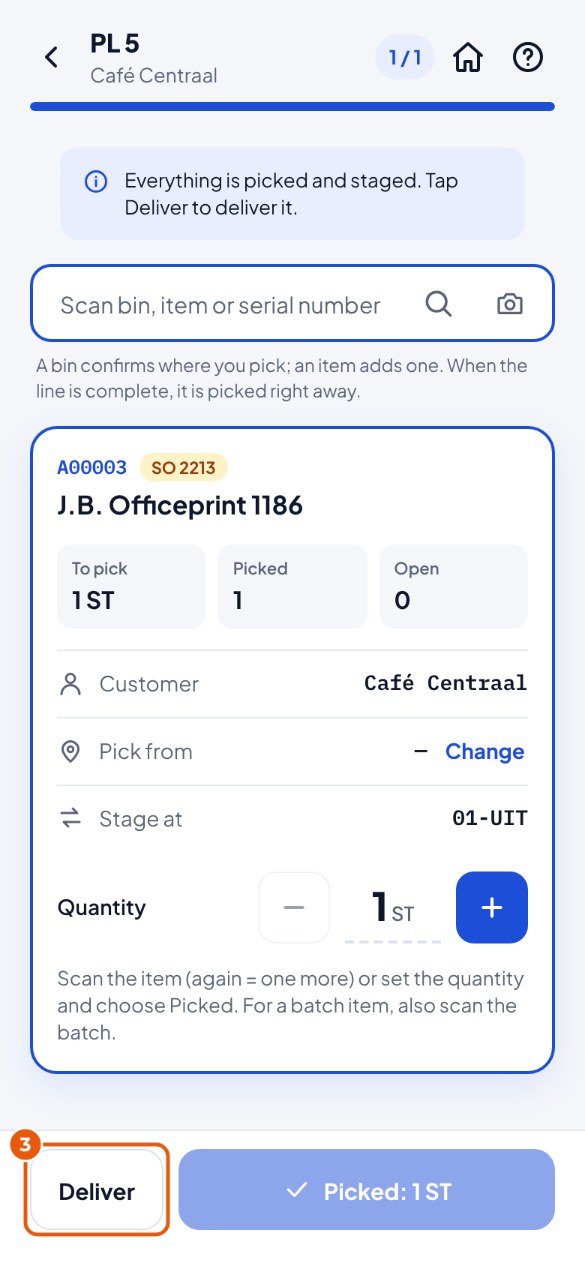
Later: tap Picking & delivery . The pick list is under Staged, still to deliver . Tap it 2 . (Scanning works too: the pick list or the sales order.)
Tap Deliver 3 and in the window tap Deliver once more.
Check: this is what you see now
KoonScan reports the delivery per customer. SAP creates it from the pick list, from 01-OUT; the pick list disappears from the list.
Tip
The office can also deliver a staged pick list in SAP (Pick and Pack). If you pick something more later on the same pick list, Deliver takes everything: what is staged and what you have just picked.
A line that is partly delivered#
Part of the line has already been delivered. SAP then no longer lets you pick such a line; you deliver the rest from the sales order.
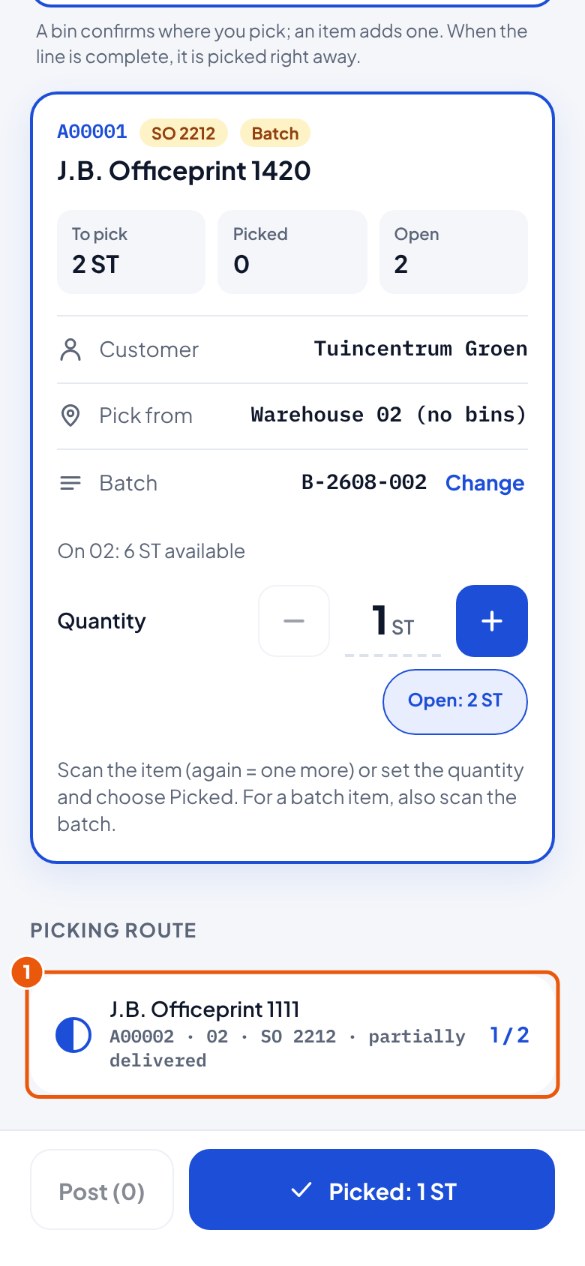
In the picking route the line says "partially delivered ". Tap the line 1 .
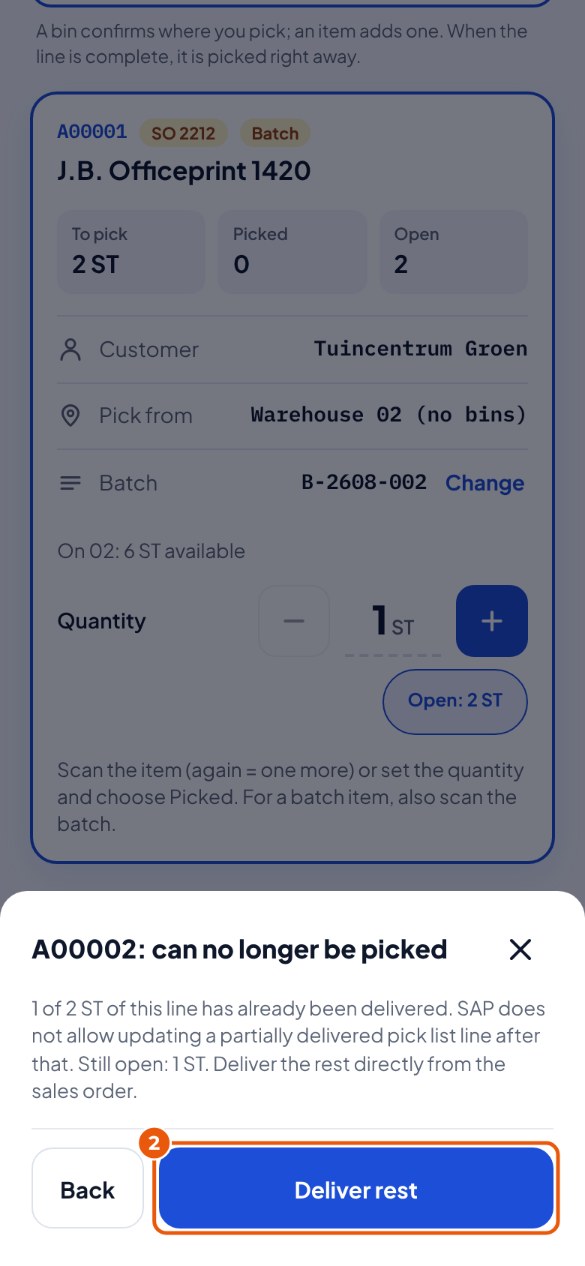
KoonScan explains how much is still open. Tap Deliver rest 2 : Deliver order opens with the sales order. Deliver the rest as in chapter 13 .
Tip
No Deliver rest button? Then Deliver order is switched off. Ask the office to create a new pick list for the rest in SAP.